How to Automate Email Processing in 2026 (Without Spamming Anyone)
A practical guide to automating email processing in your own inbox — native rules and filters, AI triage, and AI drafting — so you spend less time sorting and more time deciding.
On this page
- What “automate email processing” actually means
- The three layers of email automation
- Layer 1: Automate email in Outlook with rules
- Where rules and filters run out of road
- Layer 2: AI triage, the part that reads and decides
- Layer 3: AI drafting and action, automation that finishes the job
- Automating email without spamming anyone
- Putting it together: a practical setup
- Frequently Asked Questions
Most executives I talk to want the same thing from their inbox: less of it. Not more clever ways to send mail, and definitely not a tool that fires messages off on their behalf to people who never asked for them. They want the pile that lands every morning to be smaller, sorted, and mostly dealt with by the time they open it.
That’s what this guide is about. Automating email processing means putting a system between your inbox and your attention, so the routine gets handled quietly and only the things that need your judgment reach you. It’s the opposite of blasting anyone. Every technique here works on mail that is already addressed to you.
I’m Nir Sabato, co-founder of Catch, the admin savior for executives. It takes admin work off your plate across email, calendar, scheduling, and real phone calls. Email is usually where our users feel the difference first, so I’ve spent a lot of time watching what actually works and what just moves the mess around. What follows is what native rules can do, where they stop, and what changes when an AI with real context reads your inbox for you.
What “automate email processing” actually means
Automating email processing means applying a decision to every message that arrives, before you look at it. The decision can be trivial (file this newsletter) or not trivial at all (a client is asking for a discount mid-negotiation, get it in front of him now). Either way, it happens without you opening the message to make it.
The phrase gets used loosely, so it’s worth being precise about what is being automated:
- Inbound processing. Sorting, prioritizing, labeling, replying to, and following up on the mail that comes to you. This is what executives need, and what this guide covers.
- Outbound mass sending. Sequences, campaigns, cold outreach at volume. That’s marketing, it belongs in a marketing tool, and it isn’t what Catch does.
Those two things share the word “automation” and not much else. If you’re trying to claw back the two-plus hours a day the average knowledge worker loses to their inbox, you’re in the first category.
And one thing worth saying plainly: email is not menial work. Contracts get signed there. Negotiations happen there. Clients make decisions there. What deserves to be automated isn’t the email itself, it’s the overhead wrapped around it: the sorting, the reading, the “is this important,” the first draft.
The three layers of email automation
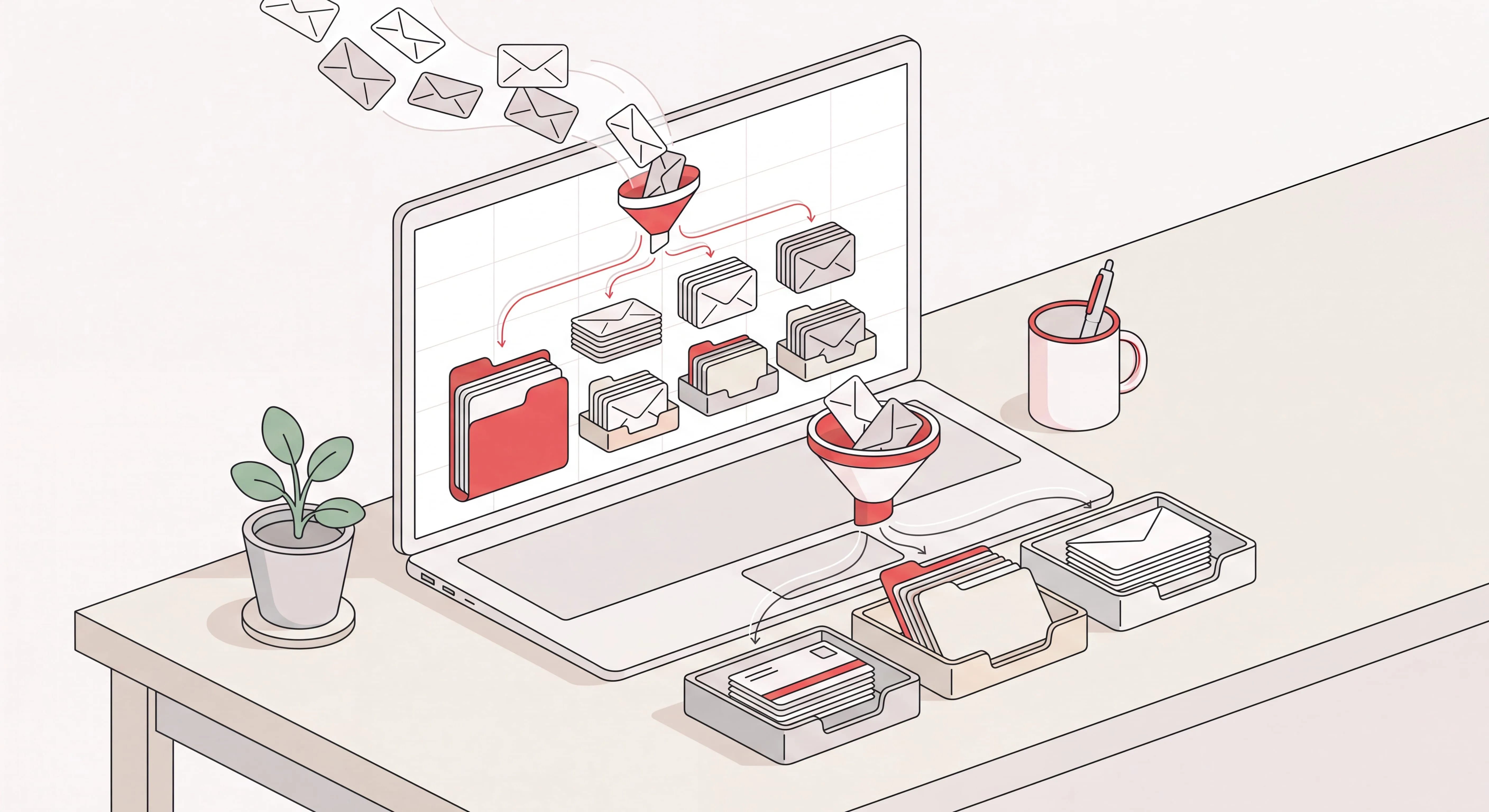
Inbox automation stacks in three layers, each one picking up what the layer below it can’t do.
- Rules and filters. Deterministic, sender-and-keyword based. Free, built into Outlook and Gmail, genuinely useful for the predictable stuff.
- AI triage. Reads the content of each message, weighs it against what it knows about your priorities, and decides what rises to you.
- AI drafting and action. Writes the reply, chases the thread, books the meeting, and does it on your behalf instead of leaving work parked in your drafts folder.
Most people stop at layer one, get frustrated, and decide inbox automation doesn’t work. All three are worth building.
Layer 1: Automate email in Outlook with rules
Native rules are the right place to start. They cost nothing, and they clear the obvious noise before anything smarter has to look at it.
To automate email in Outlook, open Settings (the gear icon), go to Mail, then Rules, and select Add new rule. Every rule needs three things: a name, a condition, and an action.
- Name it descriptively. “Vendor invoices to Finance folder” beats “Rule 1” when you’re auditing this six months from now.
- Set the condition. From a specific sender, subject contains a keyword, message has an attachment, sent to a distribution list you’re copied on.
- Choose the action. Move to folder, mark as read, categorize, forward, delete.
- Add exceptions if you need them. Outlook lets you stack multiple conditions, actions, and exceptions on one rule.
- Save it. The rule then runs on every new message that matches.
A few rules worth setting up today:
- Route CC-only mail, where you aren’t on the To: line, into a “review later” folder. For most executives that one rule pays for the whole afternoon.
- Send automated system notifications (calendar confirmations, tool alerts, receipts) straight to their own folders.
- Categorize anything from your top ten contacts so it separates visually from everything else.
Gmail does the same thing under a different name. Search for the pattern you want to catch, click the filter icon in the search bar, hit Create filter, and pick your action: label it, archive it, star it, or skip the inbox entirely.
Where rules and filters run out of road
Rules are deterministic. They do exactly what you told them, forever, no matter what’s happening in your week. That’s a strength, and it’s also the ceiling.
- They don’t read context. A rule can see that a message came from a vendor. It can’t see that this particular vendor email matters today because you’re mid-renewal, and mattered far less last month.
- They break quietly. People change email addresses, subject lines drift, and a rule that used to catch the right thing starts catching nothing. You tend to find out when something important is already missing.
- They multiply. Every edge case becomes another rule. Twenty rules in, you’re maintaining a small system you never wanted to own.
- They can’t reply. A rule can move a message. It can’t answer it, follow up on it, or notice that nobody responded.
A filter sorts. It doesn’t think. Everything that needs actual judgment still lands on your desk untouched.
Layer 2: AI triage, the part that reads and decides
Here’s where automation starts to feel like delegation. An AI triage layer reads each incoming message, works out what it is, weighs it against everything it knows about you, and decides: handle it quietly, hold it, or put it in front of you right now.
Judgment is what separates this from a filter. Catch builds a picture of the executive from connected data (who you meet, who you reply to fastest, what your calendar says about your week, what’s live in your CRM) and sharpens that picture with every correction you give it. That picture is what it ranks incoming mail against. A client asking for a major discount gets surfaced to you by text message. A meeting confirmation does not.
Good triage tends to look like this:
- Routine is handled quietly. Confirmations, FYIs, scheduling back-and-forth. You never see them, and nothing gets lost.
- Important is escalated fast. Not into a folder you might check eventually, but into the channel you actually read: Slack, text message, iMessage.
- Quiet threads get chased. When someone who matters hasn’t replied, you get told, and a nudge goes out where that’s the right call. There’s no hard-coded “follow up after two days” behind it. It’s a decision, made in context.
You can get a version of layer two from the AI now baked into Gmail and Outlook, or from tools built purely for sorting. That’s a real step up from filters. But putting mail in a better order is still a smaller job than getting the mail dealt with. For a fuller walkthrough of this layer, see our guide to AI inbox management.
Layer 3: AI drafting and action, automation that finishes the job
Sorting saves you minutes. Drafting and sending saves you hours.
This is the distinction that matters most when you’re comparing tools. Some assistants stop at a draft. They write something reasonable, park it in your drafts folder, and wait. Useful, sure. But it isn’t delegation, because the work is still yours: open it, read it, fix it, send it. A draft sitting in Gmail also can’t take feedback. You can’t tell it “warmer, and mention the September timeline” and watch it try again.
Real delegation means the assistant acts. Catch composes and sends on your behalf once it has enough to act on, and comes back to you when a decision genuinely needs you, with the context to make it, in whatever channel you’re already in. You can reach it from Slack, iMessage, a text message, a voice note, or a phone call and kick off the work from there: “email John, Sarah, and the vendor about the reschedule.” It writes it, sends it, and tells you it’s done.
Two things keep that safe rather than reckless.
- It uses judgment, and checks in when a decision is really yours. Catch doesn’t run on bad assumptions. With enough context to capture what you meant, it sends. When there are three people named John on the thread, it works out which one you meant from what it already knows about you, the same way a good assistant would, and only comes back to you when the call genuinely needs you. Early on it checks more; as it learns your priorities, your relationships, and how you like things handled, it handles more on its own.
- It verifies before doing things on your behalf. Catch runs a verification step on what it generates, so anything going out in your name holds up.
The result is an inbox where the routine is finished rather than queued. For more on the reply side specifically, we wrote a separate guide on the AI email responder pattern.
Automating email without spamming anyone
Everything above happens inside your own inbox, on mail already addressed to you. Still, the concern is fair, and a few lines are worth drawing explicitly.
- Automate inbound, not outbound volume. Triage, drafting, and replies inside real conversations are fine. Firing unsolicited mail at a purchased list is a different activity, with a different tool and a different set of consequences.
- One-to-one, always. Catch is built for individual conversations. It won’t blast hundreds of messages, and it doesn’t place mass calls either.
- Be transparent. When Catch sends on your behalf, it signs “On behalf of [Name].” It behaves as software and doesn’t pretend to be a person.
- Stay inside platform rules. Automation that leans on grey-area workarounds usually ends with a suspended account. Not worth it.
- Keep a human where the judgment lives. Negotiation, escalation, anything with real consequence: route it to you. The automation’s job is to make sure those things reach you cleanly, and everything else doesn’t.
Putting it together: a practical setup
Starting from a full inbox today? Here’s the order I’d work in.
- Spend twenty minutes on rules. Get the CC-only mail, the system notifications, and the newsletters out of the main inbox. That alone takes a visible bite out of what greets you every morning.
- Unsubscribe rather than filter. A rule that quietly deletes mail is worse than never receiving it. Take the extra click.
- Add an AI layer that reads content, not just senders. This is the step that gets you out of maintaining a rule library for the rest of your career.
- Pick a tool that acts, not one that only suggests. Ask it straight: does it send, or does it leave me drafts? The answer tells you whether you’ve delegated anything at all.
- Correct it early and often. Every “no, that one always jumps the queue” makes the following week better, because an assistant that takes feedback gets sharper with it, while a filter stays exactly where you left it.
- Extend it past email. The inbox doesn’t sit in isolation. Most of what lands there turns into a meeting, a reminder, or a booking. Catch handles those too: scheduling, calendar conflicts, reminders, reservations, and real phone calls to get things booked, for a flat $99 a month with a 10-day free trial and no per-call fees.
Automating email processing isn’t about doing more email, faster. It’s about how much of it ever needs to reach you at all. Get that number down and the hours come back.
Frequently Asked Questions
What does it mean to automate email processing?
Automating email processing means a decision gets applied to incoming messages before you read them: sorted, prioritized, replied to, or filed. It happens in your own inbox and has nothing to do with sending bulk mail out. The goal is to cut the time you lose to inbox overhead so you only handle what genuinely needs you.
How do I automate email in Outlook?
Go to Settings, then Mail, then Rules, and select “Add new rule.” Name the rule, set a condition (a sender, say, or a subject keyword), and choose an action (move to folder, categorize, delete). Outlook runs that rule on every new message that matches.
How do I automate email in Gmail?
Search for the pattern you want to catch in the Gmail search bar, click the filter icon, then choose “Create filter.” From there you can label the message, archive it, star it, forward it, or have it skip the inbox entirely. Gmail filters work much like Outlook rules.
Is email automation the same as email marketing?
No. Email marketing sends campaigns out to a list. Inbox automation processes the mail coming in to you: triage, prioritization, drafting, replies. Different tools, different problems. Catch does the second, not the first.
Can AI reply to my emails for me?
Yes. An AI assistant with access to your inbox and your context can draft and send routine replies on your behalf, then come back to you when a message genuinely needs your decision. Catch sends once it has enough context to act, instead of leaving drafts for you to finish.
Are rules and filters still worth setting up if I use AI?
Yes, as a first pass. Rules are free, and they clear predictable noise like system notifications and CC-only mail before anything else has to look at it. What they can’t do is read context or make a judgment call. That’s the AI layer’s job.
Will automating my email annoy the people who write to me?
It shouldn’t. Inbox automation acts on mail already addressed to you, and any reply it sends belongs to a real one-to-one conversation. Catch signs emails “On behalf of [Name]” rather than pretending to be you, and it doesn’t do bulk outreach of any kind.
How does AI email triage decide what’s important?
It reads the content of each message and weighs it against what it knows about you: your priorities, your key relationships, your calendar, and the corrections you’ve given it. Catch builds that picture from your connected tools and sharpens it every time you tell it something. That’s how it tells an urgent client email apart from a routine confirmation.
How long does it take to set up AI inbox automation?
Native rules take about twenty minutes to set up. Connecting an AI assistant is quicker: with Catch you connect Gmail or Outlook and start in under three minutes, with no rules to write and no workflow to build.
What does automating email processing cost?
Rules and filters in Outlook and Gmail are free. AI assistants vary. Catch is a flat $99 per month with a 10-day free trial, and that covers the full range of admin work (email triage and drafting, scheduling, calendar management, reminders, and real phone calls) rather than just the inbox.
Keep reading
Related posts

Inbox Management Tools: What Each One Takes Off Your Plate
A sorted look at inbox management tools by how much work they actually remove: tools that organize, tools that draft for your review, and assistants that answer and act.
How to Set Out of Office in Outlook: Desktop, Web, and Mobile
A guide to setting out of office in Outlook on Windows desktop, the web, and mobile — including date ranges, separate internal and external replies, and the rules that run while you are away.

Friendly Reminder Email: How to Write One That Actually Gets a Reply
A practical guide to writing a friendly reminder email that gets answered: timing, subject lines, tone, and reminder email samples for invoices, scheduling, documents, no-shows, and deadlines.