How to Sync Google Calendar With Apple Calendar in 2026
A clear, step-by-step guide to syncing Google Calendar with Apple Calendar on iPhone, iPad, and Mac in 2026 — plus how to handle two-way sync and avoid double bookings.
On this page
- What “Syncing” Actually Means Here
- How to Sync Google Calendar With Apple Calendar on iPhone and iPad
- How to Sync Google Calendar With Apple Calendar on a Mac
- Choosing Which Google Calendars Show Up
- How to Sync Apple Calendar With Google Calendar (the Other Direction)
- A Smarter Setup: Keep One Calendar as the Source of Truth
- Where Syncing Stops and Real Help Begins
- Frequently Asked Questions
If your work life runs on Google Calendar but your phone, watch, and laptop are all Apple, you’ve probably felt the gap. A meeting lands in Google, then doesn’t show up when you glance at your iPhone. Or you block focus time in Apple Calendar and a colleague double-books you anyway. The two systems are basically talking past each other.
I’m Nir Sabato, co-founder of Catch, the AI executive assistant built to take admin work off executives’ plates. A lot of my time goes to leaders at US mid-market companies, and “my calendars don’t agree with each other” is one of those quietly draining problems I hear about constantly. The good news is that connecting Google Calendar and Apple Calendar takes a few minutes, and once it’s done your schedule lives in one reliable place.
This guide covers how to sync Google Calendar with Apple Calendar on every Apple device, how to get two-way sync working, and how to deal with the trickier direction (Apple iCloud calendars into Google). After that, I’ll show you what a synced calendar actually unlocks.
What “Syncing” Actually Means Here
Before the steps, a quick bit of clarity, because this is where most people trip up.
There are two directions here, and they don’t behave the same way:
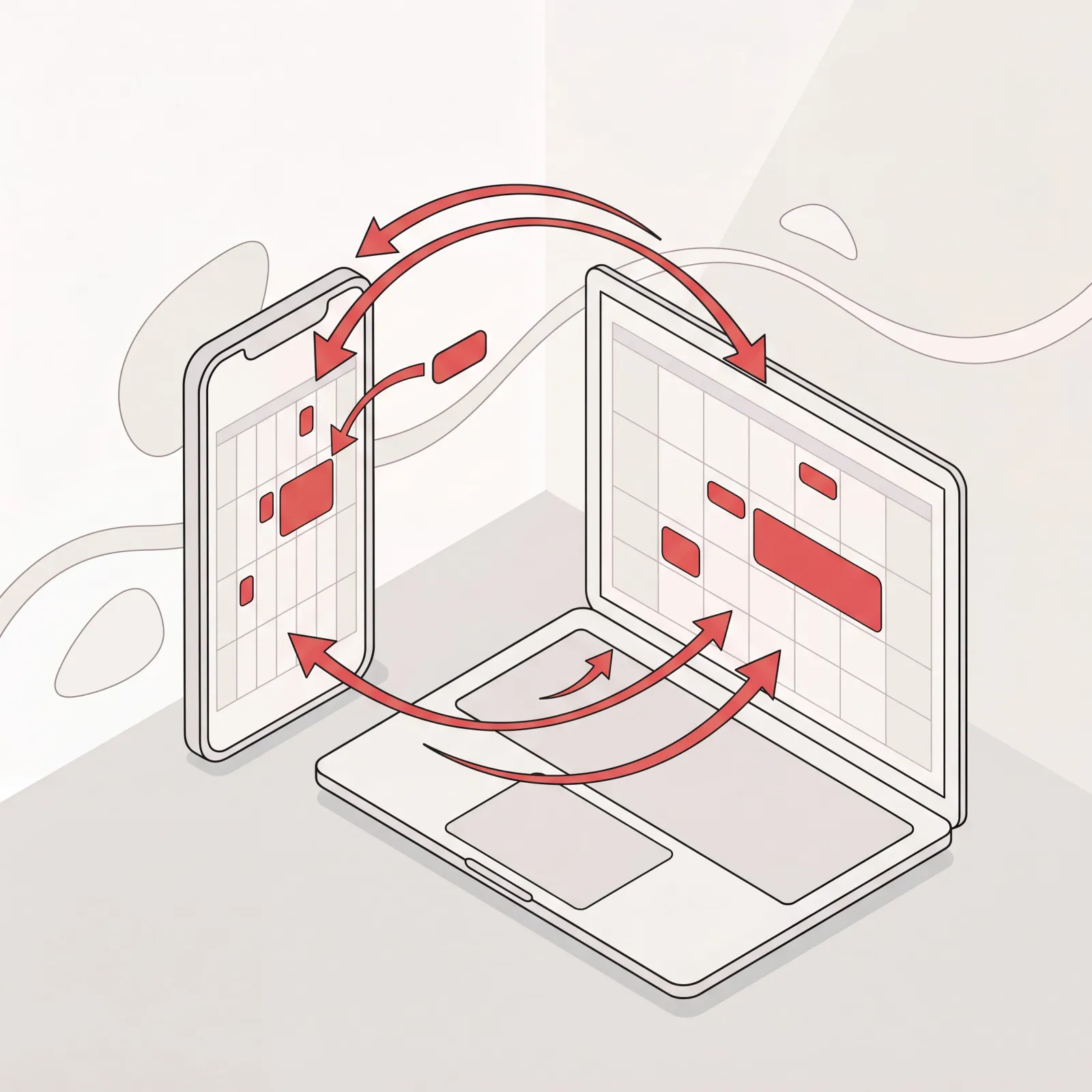
- Google Calendar → Apple Calendar. The easy, fully supported direction. When you add your Google account to your iPhone, iPad, or Mac, your Google calendars show up inside Apple’s Calendar app, and changes flow both ways for those Google-based calendars. Create an event on your Mac and it appears in Google. Edit it in Google and it updates on your phone.
- Apple iCloud Calendar → Google Calendar. The harder one. Apple doesn’t offer a built-in, two-way bridge from your iCloud calendars into Google. You can share an iCloud calendar into Google as a read-only feed, but real two-way sync between iCloud and Google takes an extra step.
For most executives, the first direction is the one you actually want. Your work calendar lives in Google Workspace, and you want it on your Apple devices. So let’s start there.
How to Sync Google Calendar With Apple Calendar on iPhone and iPad
This is the most common setup, and it’s fast.
- Open the Settings app on your iPhone or iPad.
- Scroll down and tap Calendar, then tap Accounts.
- Tap Add Account.
- Choose Google from the list.
- Sign in with your Google email and password. If your company uses two-factor authentication or single sign-on, follow the prompts to approve the login.
- On the next screen, make sure the Calendars toggle is switched on. (You can also turn on Mail, Contacts, and Notes here if you want them, but Calendars is the one that matters for this.)
- Tap Save.
That’s it. Open the Apple Calendar app and your Google events should appear within a minute or two. New events you create on your iPhone will show up in Google too, as long as you save them to your Google calendar.
Tip: When you create a new event in Apple Calendar, double-check which calendar it’s saving to. Tap the Calendar field inside the event and pick your Google calendar (it’s often labeled with your Gmail address) so the event lands in the right place and syncs back to Google.
How to Sync Google Calendar With Apple Calendar on a Mac
The Mac process is just as simple. You just start from System Settings instead.
- Click the Apple menu in the top-left corner of your screen.
- Open System Settings.
- In the left-hand column, click Internet Accounts.
- Click Add Account on the right.
- Select Google and sign in with your Google credentials.
- When the sync options appear, make sure Calendars is turned on. Click Done.
Open the Calendar app on your Mac and your Google calendars will show up in the sidebar under your Google account name. Tick the boxes next to the ones you want to see. Events sync both ways for these Google calendars, so anything you change on your Mac flows back to Google on its own.
Choosing Which Google Calendars Show Up
Most executives don’t have just one Google calendar. There’s usually your main work calendar, a shared team calendar, a holidays calendar, and a couple you subscribed to and forgot about. By default, your iPhone may only show your primary calendar.
To control which ones appear on your Apple devices:
- On a computer, go to the Google Calendar sync settings page (Google’s own settings for syncing calendars to mobile devices).
- Check the boxes next to every calendar you want to appear on your iPhone or iPad.
- Save, then refresh the Calendar app on your device.
This is the fix when someone says “my main calendar synced fine, but my team’s shared calendar is missing.” Nine times out of ten, it’s this setting.
How to Sync Apple Calendar With Google Calendar (the Other Direction)
Now the harder direction: getting events from your Apple iCloud calendar to show up in Google Calendar.
Apple doesn’t provide a built-in two-way sync for this one. The most common built-in approach is a one-way, read-only share:
- On your Mac, open the Calendar app.
- Right-click (or Control-click) the iCloud calendar you want to share in the sidebar.
- Choose Share Calendar, then turn on Public Calendar.
- Copy the public link Apple gives you.
- Change the start of that link from
webcal://tohttp://if needed. - In Google Calendar on a computer, find Other calendars in the left sidebar, click the +, and choose From URL.
- Paste the link and click Add calendar.
Your iCloud events will now show up inside Google Calendar. Two things to keep in mind about this method. It’s read-only, so you can see iCloud events in Google but you can’t edit them there. And Google refreshes subscribed URL calendars on its own schedule, which means new events may take a while to appear rather than showing up instantly.
If you need genuine two-way sync between iCloud and Google, where editing an event in either place updates the other, you’ll need a dedicated sync tool. A handful of reputable third-party services keep iCloud and Google calendars mirrored in both directions. For most people, though, the cleaner answer is to pick one calendar system as your “source of truth” for creating events (usually Google, for work) and let everything flow from there.
A Smarter Setup: Keep One Calendar as the Source of Truth
Here’s the advice I give executives most often. The goal isn’t to sync everything in every direction. It’s to have one calendar you trust and one place you look.
For most leaders at mid-market companies, that’s the Google Workspace calendar. It’s where invites land, where your team books you, and where your scheduling tools connect. Sync it into Apple Calendar using the steps above and you get the best of both worlds: your work schedule lives in Google, but you can see and manage it from your iPhone, iPad, Apple Watch, and Mac.
Create new events on your Google calendar (even from inside Apple Calendar) and you’ll never have to wonder which version is the right one.
Where Syncing Stops and Real Help Begins
Syncing solves the visibility problem: your meetings show up everywhere. What it doesn’t solve is the work of running a calendar. Synced calendars still won’t resolve conflicts on their own. They won’t reschedule the meeting that just collided with your flight. They won’t coordinate times across three other people, send the invite, and chase the one person who never replies.
That’s the part that still eats an executive’s day, and it’s exactly what we built Catch to take over.
Catch is an AI executive assistant that connects to your Google Calendar (the same standard connect-your-calendar setup you’d use for any integration) and then actually runs your schedule for you. A few examples of what that looks like in practice:
- It resolves conflicts end-to-end. Catch watches your calendar continuously. When two meetings collide, it doesn’t just flag the problem. It reaches out to reschedule and gets it sorted, so you never have to.
- It schedules new meetings across channels. Ask Catch by text, iMessage, Slack, email, or voice (“set up 30 minutes with the design team next week, mornings only”) and it checks your calendar, coordinates with everyone, and sends the invite.
- It books the links other people send you. Someone emails you a scheduling link? Catch reviews the open slots and books a time that actually works for you, instead of letting it sit in your inbox.
- It generates scheduling links in seconds, with whatever constraints you give it.
So once your calendars are synced and visible, Catch is what turns that calendar from something you manage into something that manages itself. It works wherever you already are (Slack, email, text, iMessage, and phone) for a flat $99/month, with no per-call fees.
Syncing your calendars is step one. Handing the busywork off entirely is the step that actually gives you your time back.
Frequently Asked Questions
How do I sync Google Calendar with Apple Calendar?
On iPhone or iPad, go to Settings > Calendar > Accounts > Add Account > Google, sign in, and turn on Calendars. On a Mac, go to System Settings > Internet Accounts > Add Account > Google and enable Calendars. Your Google events will then appear in Apple’s Calendar app.
Does syncing Google Calendar with Apple Calendar work both ways?
Yes, for your Google calendars. Once your Google account is connected, an event you create or edit in Apple Calendar syncs back to Google, and changes made in Google appear on your Apple devices. The one exception is iCloud calendars, which don’t sync into Google the same way.
How do I sync Apple Calendar with Google Calendar?
Apple doesn’t offer built-in two-way sync from iCloud to Google. You can share an iCloud calendar as a public link and subscribe to it in Google Calendar (read-only), or use a dedicated third-party sync tool if you need full two-way updates.
Why isn’t my Google Calendar showing up on my iPhone?
Start by confirming the Calendars toggle is on under Settings > Calendar > Accounts > your Google account. If only some calendars are missing, head to Google’s calendar sync settings on a computer, make sure each calendar you want is checked, then refresh the Calendar app.
Can I choose which Google calendars sync to my iPhone?
Yes. On a computer, open Google’s calendar sync settings for mobile devices and check the boxes next to the calendars you want on your iPhone or iPad. Save and refresh, and the selected calendars will appear.
Will syncing cause duplicate events?
Duplicates usually crop up when the same calendar is connected in more than one way, say both as a Google account and as a subscribed URL. To avoid it, connect each calendar once and pick a single calendar as the place where you create new events.
Do I need iCloud to sync Google Calendar with Apple Calendar?
No. Adding your Google account directly to your device is independent of iCloud. iCloud only comes into play when you want to push your Apple iCloud calendars into Google, which is the harder direction.
How long does it take for events to sync?
Events on connected Google accounts typically appear within a minute or two. Calendars you subscribe to by URL (like a shared iCloud link in Google) refresh on the provider’s own schedule, so those can take longer to update.
Can I create new events that save to Google from Apple Calendar?
Yes. When you create an event in Apple Calendar, tap the Calendar field inside the event and select your Google calendar. The event will then save to Google and sync across all your devices.
Can an assistant manage my calendar after it’s synced?
Yes. Once your calendar is connected, an AI executive assistant like Catch can run it for you - resolving conflicts, scheduling meetings, booking external links, and sending invites - across Slack, email, text, iMessage, and phone, so you stay focused on the work only you can do.
Keep reading
Related posts
Scheduling Software That Integrates With Outlook: What to Look For
Every scheduling tool claims Outlook support, and they mean very different things by it. Here is how to test integration depth before you buy, plus the failure points that show up in week three.
Outlook Scheduling Assistant: What It Does and Where It Stops
A practical guide to the Outlook Scheduling Assistant: how to open it, read the free/busy grid, use Room Finder and AutoPick, and what to do when your guests are outside your organization.
Meeting Notes Template: Free Formats You Can Actually Use
Free, copy-ready meeting notes templates for team meetings, one-on-ones, project kickoffs, client calls, and board meetings, plus how to turn notes into action items.