How to Sync Google Calendar With iPhone in 2026
A clear, step-by-step guide to syncing Google Calendar with your iPhone in 2026 — including the native Calendar app method, the Google Calendar app, multi-calendar fixes, and troubleshooting.
On this page
- The Fastest Way to Sync Google Calendar With iPhone
- How to Sync Google Calendar With iPhone Using the Native Calendar App
- Choosing How Often Your Calendar Updates
- Setting Your Default Calendar
- How to Sync iPhone Calendar With Google Calendar Using the Google App
- How to Sync Multiple Google Calendars With Your iPhone
- How to Fix It When Your iPhone Calendar Isn’t Syncing
- Confirm the Calendar Toggle Is On
- Check Your Internet Connection
- Pull to Refresh
- Make Sure the Right Calendars Are Selected
- Re-add the Account
- Update iOS and Your Apps
- Native Calendar App vs. Google Calendar App: Which Should You Use?
- Why a Synced Calendar Is Only Half the Job
- Frequently Asked Questions
If you run your work life out of Google Calendar but carry an iPhone, you know the gap I’m talking about. An event you create on your laptop never shows up on your phone. Or you accept an invite on mobile and it somehow never makes it back to the team calendar. Knowing how to sync Google Calendar with iPhone closes that gap so every meeting, reminder, and last-minute reschedule lands in one place, regardless of where you typed it in.
I’m Nir Sabato, co-founder of Catch, an AI Executive Assistant that handles scheduling, email, and calendar work for executives at US mid-market companies. Before Catch can manage anyone’s day, the calendar has to be connected and actually reliable, so I end up walking a lot of people through this exact setup. This guide covers every way to sync Google Calendar with iPhone in 2026, which method makes sense for you, and what to do when calendars go missing.
The Fastest Way to Sync Google Calendar With iPhone
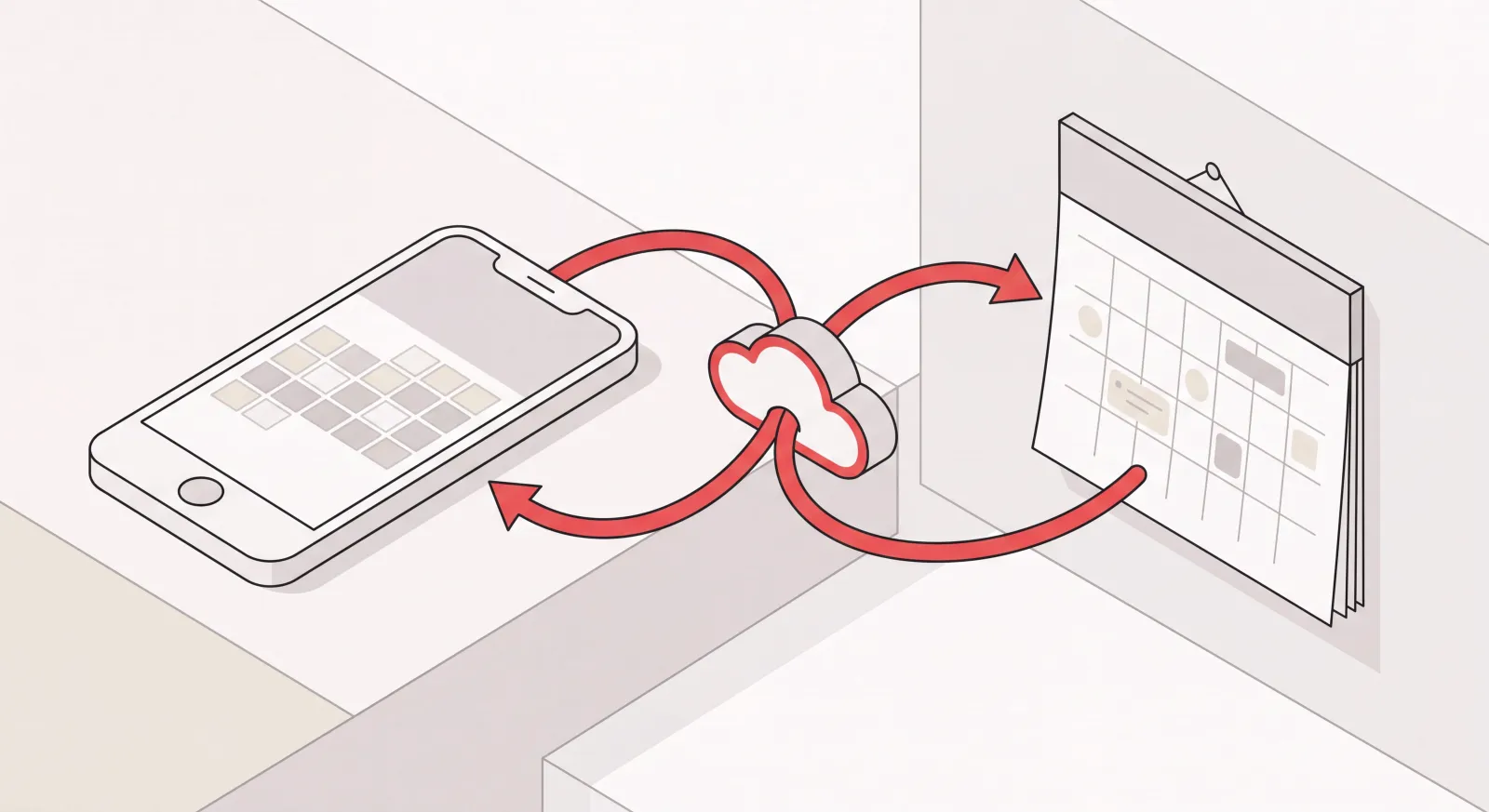
The fastest way to sync Google Calendar with iPhone is to add your Google account straight in the iPhone’s Settings, which pipes your Google events into Apple’s built-in Calendar app. No download required, and once it’s set up, events flow both directions on their own.
The short version: open Settings, go to Apps → Calendar, tap Calendar Accounts, add your Google account, and flip on the Calendars toggle. That’s it. Full steps are below, plus the alternatives if you’d rather stick with Google’s own app.
There are three reliable ways to pull this off, and the right one really depends on how you like to work:
- Native Calendar app - add your Google account in Settings so Google events show up in Apple Calendar. Best if you want one app for everything.
- Google Calendar app - grab Google’s app from the App Store. Best if you want Google’s exact interface and features.
- Both at once - plenty of people run the native sync and the Google app side by side. Best if different people on your team lean on different tools.
How to Sync Google Calendar With iPhone Using the Native Calendar App
To sync Google Calendar with iPhone using the native Calendar app, add your Google account under Settings, then switch on calendar syncing for that account. This is the cleanest option since your Google events sit right alongside everything else in Apple Calendar.
Here’s how:
- Open the Settings app on your iPhone.
- Tap Apps, then scroll down and tap Calendar.
- Tap Calendar Accounts, then Add Account.
- Choose Google from the list of account types.
- Sign in with your Google email and password, and complete any two-factor verification.
- On the permissions screen, make sure the Calendars toggle is switched on. (You can also turn on Mail, Contacts, and Notes here if you want them.)
- Tap Save.
Open the Apple Calendar app and your Google events should show up within a minute or two. From here on, anything you add on your iPhone syncs back to Google, and anything you add in Google lands on your iPhone.
Choosing How Often Your Calendar Updates
iPhone lets you decide how often it checks for new calendar data. Go to Settings → Apps → Calendar → Calendar Accounts → Fetch New Data. (Can’t find it? Type “Fetch” into the search bar at the top of Settings.) You’ll see options like Push, Fetch, and Manual.
For most people, leaving fetch on its automatic schedule does the job and keeps your calendar current through the day. Want events to land as fast as possible? Pick a more frequent fetch interval. Trying to save battery instead? A longer interval is fine. Your calendar still updates, just a little less often.
Setting Your Default Calendar
If you keep both personal and work calendars, tell your iPhone which one new events should default to. Go to Settings → Apps → Calendar → Default Calendar and pick the Google calendar you live in most. Now when you quickly add an event on your phone, it lands in the right place without extra taps.
How to Sync iPhone Calendar With Google Calendar Using the Google App
The other way to sync iPhone calendar with Google Calendar is to install the official Google Calendar app from the App Store and sign in. This hands you Google’s full interface, including features like Goals, Tasks, and side-by-side day views, right on your phone.
Here’s the process:
- Open the App Store and search for Google Calendar.
- Download and open the app.
- Sign in with your Google account (or pick it if you’re already signed into other Google apps).
- Grant the permissions it asks for, including notifications if you want event alerts.
Your events appear right away, and the app stays synced with Google in real time. One nice detail: you can run the Google Calendar app and the native sync at once. Some people like Google’s app for managing events and the native Apple widget for a quick glance, and both stay in sync because they’re reading from the same Google account.
How to Sync Multiple Google Calendars With Your iPhone
If you have more than one Google calendar - say a work one, a personal one, and a shared team calendar - some of them may not show up on your iPhone even after you sync. This trips up more people than anything else here, and the fix takes about a minute.
Apple’s native Calendar app only displays the Google calendars you’ve explicitly chosen to sync. To switch the missing ones on:
- On your iPhone, open a browser and go to calendar.google.com/calendar/syncselect.
- Sign in if prompted.
- Check the box next to each calendar you want to see on your iPhone.
- Tap Save.
- Open Apple Calendar and the extra calendars now appear. (Give it a minute and pull down to refresh if needed.)
Using the Google Calendar app instead? Tap the menu and make sure each calendar is toggled on under its account. The app shows your calendars the moment you enable them.
How to Fix It When Your iPhone Calendar Isn’t Syncing
When Google Calendar and iPhone stop syncing, it’s almost always one of a handful of small settings, not a broken account. Work through these checks in order and you’ll clear up the vast majority of cases.
Confirm the Calendar Toggle Is On
Go to Settings → Apps → Calendar → Calendar Accounts, tap your Google account, and confirm the Calendars switch is on. If it somehow got turned off, your events won’t appear. Flip it back on and give it a moment.
Check Your Internet Connection
Calendar sync needs a live connection. On weak Wi-Fi or a spotty signal, new events tend to lag. Switch between Wi-Fi and cellular, or move somewhere with a stronger signal, then check again.
Pull to Refresh
In the Apple Calendar app, tap the Calendars button at the bottom, then pull down on the screen to force a refresh. This nudges your iPhone to grab the latest events right away instead of waiting on the next scheduled update.
Make Sure the Right Calendars Are Selected
If only some events are missing, the calendar they live on probably isn’t selected. Head back to calendar.google.com/calendar/syncselect (steps above) and confirm every calendar you need is checked.
Re-add the Account
If nothing else works, remove the Google account and add it back. Go to Settings → Apps → Calendar → Calendar Accounts → [your Google account] → Delete Account, then run through the native setup steps again. This usually clears up stubborn sync issues, and it won’t touch any of your actual Google data. Your events live in Google, not on the phone.
Update iOS and Your Apps
Sync bugs sometimes get quietly fixed in software updates. Check Settings → General → Software Update for iOS, and update the Google Calendar app in the App Store if you use it.
Native Calendar App vs. Google Calendar App: Which Should You Use?
Both methods sync the same events. The difference is the experience. Here’s a quick comparison to help you choose how to sync Google Calendar with iPhone.
| Feature | Native Apple Calendar | Google Calendar App |
|---|---|---|
| Setup | Add account in Settings | Download from App Store |
| Interface | Apple’s clean, simple design | Google’s full feature set |
| Widgets & Apple integrations | Built in (Siri, lock screen, widgets) | Limited |
| Google-specific features (Goals, Tasks) | Not available | Available |
| Works with other accounts in one view | Yes (Google, iCloud, Outlook together) | Google accounts focused |
| Best for | One unified calendar across services | People who prefer Google’s tools |
There’s no wrong answer here. If you want every calendar - Google, iCloud, work - in one view with Apple’s widgets and Siri, go native. If you lean on Google-specific features, use Google’s app. And if your team is split down the middle, just run both.
Why a Synced Calendar Is Only Half the Job
Syncing gets your calendar onto your phone, but it doesn’t actually do any of the scheduling work. You’re still the one finding times that work, sending invites, chasing replies, untangling double-bookings, and reshuffling things when a meeting moves. For a busy executive, that piles up to hours every week, no matter how perfectly your devices are synced.
This is the part Catch takes over. Once you connect your Gmail or Outlook account - the same kind of connection you just set up on your iPhone - Catch reads and writes to your calendar and lifts the scheduling off your plate:
- It resolves conflicts on its own. When two meetings collide, Catch reaches out and reschedules instead of just flagging the clash and dumping it back on you.
- It schedules new meetings end to end. Ask by text, Slack, email, or voice - “set up 30 minutes with the design team next week” - and it checks your availability, coordinates with the other side, and sends the invite.
- It generates scheduling links in seconds, with your constraints baked in (“mornings only, next week, just these slots”).
- It books external links for you. When someone sends a scheduling link, Catch picks a time that fits your calendar and books it, no click-through required.
- It preps you for meetings, pulling briefs from your connected tools and reminding you of anything still outstanding before you walk in.
You connect once, and Catch works across your channels - Slack, email, text, iMessage, and phone - at a flat $99 a month. The calendar sync you just finished is the foundation. Catch is what turns that synced calendar into an assistant that actually manages your time.
Frequently Asked Questions
How do I sync Google Calendar with iPhone?
Open Settings → Apps → Calendar → Calendar Accounts → Add Account, choose Google, sign in, and turn on the Calendars toggle. Your Google events show up in the Apple Calendar app within a minute or two, and they stay synced both directions on their own.
How do I sync my iPhone calendar with Google Calendar?
Same setup, really. Adding your Google account in Settings syncs in both directions, so events you create on your iPhone show up in Google and the other way around. Just make sure the Calendars toggle is on for your Google account under Settings → Apps → Calendar → Calendar Accounts.
Why isn’t my Google Calendar syncing with my iPhone?
Usually it’s one of three things: a turned-off Calendars toggle, a weak internet connection, or a calendar that isn’t selected for sync. Check Settings → Apps → Calendar → Calendar Accounts → [Google account] to confirm Calendars is on, then pull down to refresh in the Calendar app.
Why are some of my Google calendars missing on my iPhone?
Apple’s native Calendar app only shows the Google calendars you’ve actually selected to sync. Go to calendar.google.com/calendar/syncselect on your phone, check the ones you want, and tap Save. The missing calendars will appear.
Do I need the Google Calendar app to sync with my iPhone?
No. You can sync entirely through the native Apple Calendar app by adding your Google account in Settings. The Google Calendar app is just an optional alternative if you prefer Google’s interface and features.
Can I use both Apple Calendar and the Google Calendar app at the same time?
Yes. Both read from the same Google account, so they stay in sync with each other. A lot of people use the native sync for Apple widgets and Siri while keeping the Google app around for its specific features.
How often does my iPhone sync with Google Calendar?
By default, your iPhone checks for new calendar data on an automatic schedule. You can change this under Settings → Apps → Calendar → Calendar Accounts → Fetch New Data, where you can pick a more frequent update interval or switch it to manual.
Will syncing delete any of my events?
No. Your events live in your Google account, not on the phone. Adding, removing, or re-adding the account on your iPhone only changes what’s displayed locally. It never deletes the events stored in Google.
Can I set which calendar new iPhone events go to?
Yes. Go to Settings → Apps → Calendar → Default Calendar and choose the Google calendar you want new events to default to. Handy if you keep separate work and personal calendars.
Does syncing my calendar handle scheduling for me?
No. Syncing only puts your calendar on your phone. Finding times, sending invites, chasing replies, and rescheduling are all still on you. An AI Executive Assistant like Catch connects to your calendar and handles that scheduling work end to end.
Keep reading
Related posts
Online Scheduling Tools: What Each Type Actually Does
There are five distinct kinds of online scheduling tool, built for five different problems. This guide defines each category, what it was designed to solve, and who it fits.
What Is Block Scheduling? How It Works and Why Blocks Collapse
What block scheduling is, how it differs from time blocking and task batching, how to build one that works, and the real reason so many blocks collapse by mid-morning.
Scheduling Software That Integrates With Outlook: What to Look For
Every scheduling tool claims Outlook support, and they mean very different things by it. Here is how to test integration depth before you buy, plus the failure points that show up in week three.