How to Sync Google Calendar: The Complete 2026 Guide
A step-by-step guide to syncing Google Calendar across your phone, computer, Outlook, and team — plus the sync settings that actually matter.
On this page
- What Does It Mean to Sync Google Calendar?
- How to Sync Google Calendar Across Your Devices
- Sync Google Calendar on iPhone and iPad
- Sync Google Calendar on Android
- Sync Google Calendar on Your Computer
- How to Sync Google Calendar With Outlook
- Google Calendar Sync Settings That Actually Matter
- How to Fix Google Calendar Not Syncing
- Why a Synced Calendar Is the Foundation of Good Scheduling
- Frequently Asked Questions
If your calendar lives in one place but your day happens in five, you already know the problem. A meeting you accepted on your laptop never shows up on your phone. That event you added while walking out the door? Gone when you sit back down at your desk. And then someone double-books you, because the version of your calendar they were looking at was a few hours stale.
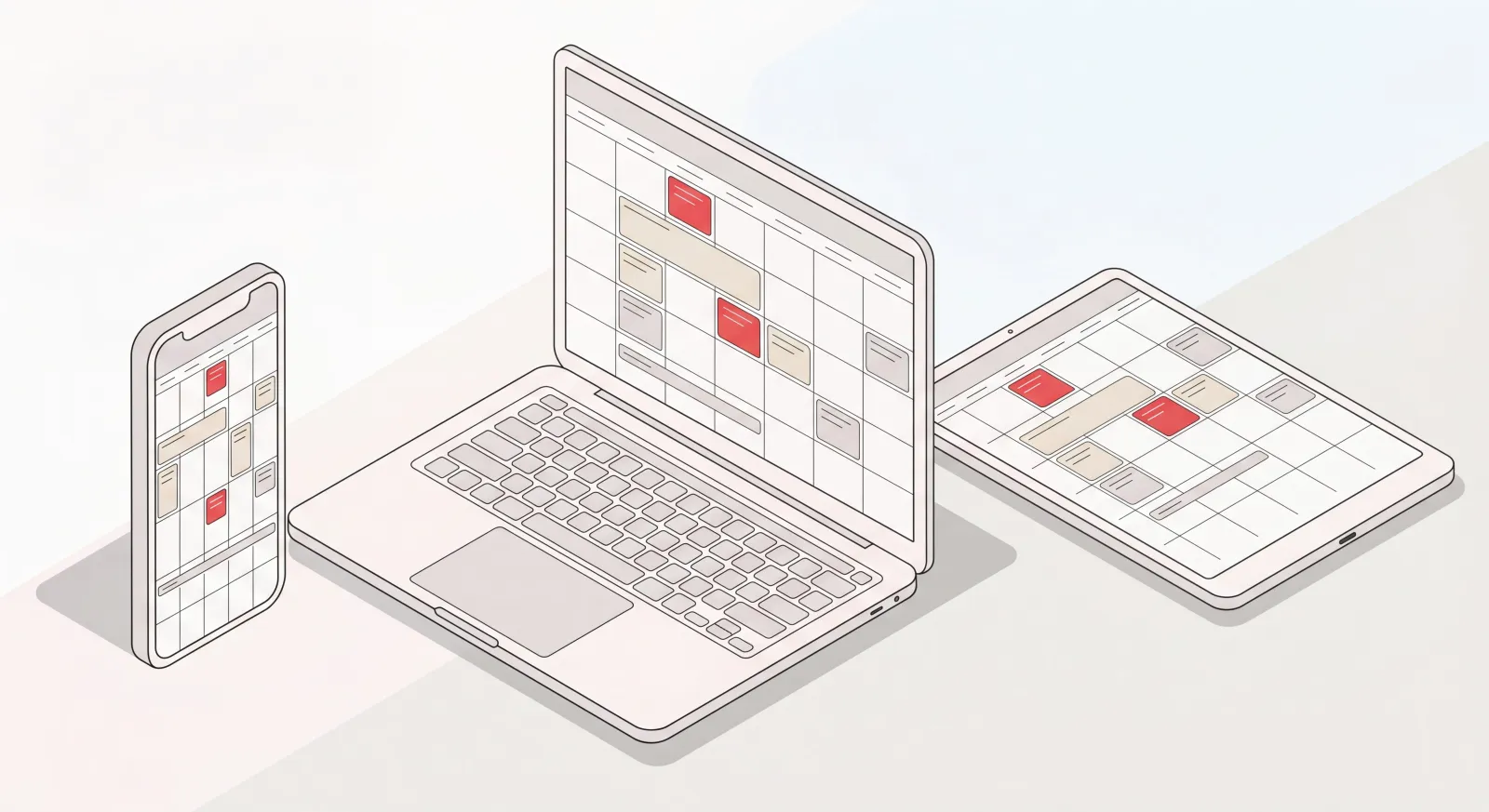
This is what learning how to sync Google Calendar fixes. Set it up right and every device and every app shows the same calendar, updated in something close to real time, so an event you add once appears everywhere you work.
I’m Nir Sabato, co-founder of Catch, an AI Executive Assistant that runs calendars, email, and scheduling for executives at US mid-market companies. I spend a lot of my time inside other people’s calendars, and after a while you notice a pattern: the number one reason things slip through the cracks isn’t a bad assistant or a missed email. It’s a calendar that was never synced properly in the first place. So this guide covers how to get Google Calendar syncing across everything you use, the sync settings that actually matter, and what to try when it quietly stops working.
What Does It Mean to Sync Google Calendar?
Syncing Google Calendar means connecting your Google account so the same calendar data shows up and stays current everywhere you work: your phone, your computer, Outlook, your team’s tools, whatever else you’ve linked.
Here’s the mechanic underneath it. Your calendar lives in Google’s cloud, and each device or app you connect keeps its own current copy by checking in with that cloud. Add, edit, or delete an event in one spot and the change travels up to Google, then back out to everywhere else you’ve connected. One source of truth, reflected everywhere.
When people say “sync Google Calendar,” they usually mean one of two things:
- Sync your Google Calendar across your own devices, so your iPhone, work laptop, and tablet all show the same calendar.
- Sync Google Calendar with another calendar service, usually Outlook, so events from both systems land in one view.
This guide covers both, plus the settings and fixes that surround them.
How to Sync Google Calendar Across Your Devices
The fastest way to sync Google Calendar across your devices is to sign in with the same Google account on each one and switch calendar syncing on. Your calendar lives in your Google account, so signing in is really what connects each device to it.
Here’s how it looks on each platform.
Sync Google Calendar on iPhone and iPad
To sync Google Calendar with your iPhone or iPad, add your Google account in the iOS Calendar settings:
- Open Settings on your iPhone or iPad.
- Scroll down and tap Calendar, then tap Accounts.
- Tap Add Account and choose Google.
- Sign in with your Google email and password, and approve the requested permissions.
- Make sure the Calendars toggle is switched on for that account.
Your Google Calendar events will now show up in Apple’s built-in Calendar app. Prefer Google’s own app? Download Google Calendar from the App Store and sign in with the same account. Both stay in sync because they’re reading from the same place.
Sync Google Calendar on Android
On most Android phones, Google Calendar is built in, so syncing usually just means confirming the right account is connected:
- Open Settings and go to Passwords & accounts (the wording varies slightly by device).
- Confirm your Google account is listed. If it isn’t, tap Add account and sign in.
- Tap your Google account, open Account sync, and make sure Calendar is turned on.
- Open the Google Calendar app to confirm your events are showing.
Still not seeing your events? Open the Google Calendar app, tap the menu, and check that the specific calendars you want (work, personal, shared) are ticked under your account.
Sync Google Calendar on Your Computer
On a computer, Google Calendar runs in your browser. Nothing to install:
- Go to calendar.google.com and sign in with your Google account.
- Any event you add here syncs straight to your phone and tablet.
- In the left sidebar under My calendars, tick the calendars you want visible.
If you live in the macOS Calendar app or some other desktop calendar, add your Google account in that app’s account settings and it’ll sync the same way your phone does.
How to Sync Google Calendar With Outlook
To sync Google Calendar with Outlook, add your Google account directly to the Outlook app so both calendars sit side by side. This is the cleanest route if you run your email out of Outlook but keep your schedule in Google.
In the Outlook mobile app (iPhone or Android):
- Open Outlook and tap your profile icon, then the gear icon for Settings.
- Tap Add Mail Account, then Add Email Account.
- Enter your Google address, choose Google when prompted, and sign in.
- Approve the permissions. Your Google Calendar now appears inside Outlook’s calendar view.
Want the reverse, with your Outlook events showing up inside Google Calendar? You can publish your Outlook calendar and add it to Google:
- In Outlook on the web, open Settings → Calendar → Shared calendars.
- Under Publish a calendar, choose your calendar, set permissions, and copy the ICS link.
- In Google Calendar on the web, click the + next to Other calendars, choose From URL, paste the link, and click Add calendar.
A word of caution on that second method. A published ICS link is a one-way, read-only feed, and Google refreshes it on its own schedule rather than the moment you make a change. So for a live, two-way view, adding your Google account into Outlook (the first method) tends to be more reliable. For most executives, the sanest setup is to pick one calendar as your primary and pull the other one in alongside it, instead of trying to keep two masters in step.
Google Calendar Sync Settings That Actually Matter
Most sync problems come down to a handful of settings, not anything actually broken. These are the Google Calendar sync settings worth checking first.
- Per-calendar visibility. Under My calendars and Other calendars, each calendar has its own checkbox. An unchecked calendar still exists and still syncs. It’s just hidden from view. So if events seem “missing,” start here.
- Account sync toggle (mobile). On both iPhone and Android, each connected account has a master calendar-sync switch. If it’s off, nothing from that account shows up.
- Sync window on the mobile app. The Google Calendar app on Android lets you control how far back events sync. If old events matter to you, widen it.
- Default calendar for new events. When you’re juggling several calendars, pick which one new events land on by default. Otherwise an event can quietly end up on a calendar your team can’t see.
- Time zone. A mismatched time zone is the sneaky reason a meeting looks an hour off on one device. Set your time zone consistently in Google Calendar settings and in each device’s system settings.
- Notifications. Sync controls whether an event appears; notification settings control whether you’re reminded. They’re two different things, so check both if reminders aren’t reaching a device.
How to Fix Google Calendar Not Syncing
When Google Calendar isn’t syncing, the fix is almost always one of these, roughly in this order:
- Check your internet connection. Sync needs a live connection to Google’s cloud. No connection, no sync.
- Confirm the calendar is turned on. Make sure the specific calendar is ticked in the sidebar (desktop) or under your account (mobile).
- Verify account sync is enabled. On mobile, open your Google account settings and confirm Calendar sync is switched on.
- Force a manual refresh. In the Google Calendar app, pull down to refresh, or just close and reopen the app.
- Update the app. An outdated calendar app can stop syncing. Grab the latest version from the App Store or Play Store.
- Remove and re-add the account. As a last resort, remove the Google account from the device and add it back. That rebuilds the connection cleanly.
If events still refuse to appear after all that, sign in to calendar.google.com on a computer. If the event is sitting there, the problem is local to one device. If it’s missing there too, the event was never saved to Google in the first place.
Why a Synced Calendar Is the Foundation of Good Scheduling
A synced calendar is the foundation everything else sits on. Scheduling, rescheduling, conflict detection, delegation: all of it depends on every system seeing the same, current version of your day. When your calendar isn’t synced, you get the double-bookings, the missed meetings, and the “wait, I thought that moved” moments that quietly eat real hours.
This is where Catch comes in. Catch is an AI Executive Assistant that connects to your Google Calendar (using the same connect-your-calendar mechanism described above) and then takes the work off your plate. Rather than you watching for conflicts, Catch watches continuously and resolves them. It spots when two meetings collide, reaches out to the right people, and reschedules end to end. Rather than you copying an event between calendars, Catch keeps your scheduling coordinated across the tools you already use.
A few things Catch handles once your calendar is connected:
- Proactive conflict resolution. Catch finds scheduling conflicts and actually fixes them, reaching out to reschedule instead of just flagging the problem for you to sort out.
- Scheduling new meetings. Ask Catch by text, Slack, email, or voice to set something up, and it checks your availability, coordinates with the other side, and sends the invite.
- Scheduling links in seconds. Need a booking link with specific constraints, like mornings only, next week, certain people? Catch generates it.
- Booking external links. When someone sends you a scheduling link, Catch reviews the slots and books the right one based on your availability.
- Managing invites. Adding or removing participants, shortening a meeting, accepting or declining: Catch handles it directly in your calendar.
The point isn’t yet another app to check. It’s that once your Google Calendar is synced and connected, the day-to-day scheduling work can be genuinely handed off, for a flat $99 a month, with a 10-day free trial. For executives at mid-market companies who don’t have a full-time assistant, that’s the difference between managing your calendar and having your calendar managed for you.
Getting Google Calendar synced across your devices solves the visibility problem. Handing off the scheduling work that happens inside that calendar is what actually frees up your time.
Frequently Asked Questions
What does it mean to sync Google Calendar?
Syncing Google Calendar means connecting your Google account across your devices and apps so they all show the same, up-to-date calendar. Add or change an event in one place and it updates everywhere you’re connected. Your calendar lives in Google’s cloud, and each device keeps a current copy of it.
How do I sync Google Calendar across all my devices?
Sign in with the same Google account on each device and make sure calendar sync is turned on. On iPhone, add your Google account under Settings → Calendar → Accounts. On Android, confirm your Google account is connected with Calendar sync enabled. On a computer, you just sign in at calendar.google.com.
How do I sync Google Calendar with my iPhone?
Open Settings, tap Calendar, then Accounts, then Add Account, and choose Google. Sign in with your Google email and approve the permissions, then make sure the Calendars toggle is on. Your Google events will appear in Apple’s Calendar app, or you can install the Google Calendar app and sign in with the same account.
How do I sync Google Calendar with Outlook?
The cleanest method is to add your Google account directly to the Outlook app: open Settings, tap Add Mail Account, choose Google, and sign in. Your Google Calendar then appears inside Outlook. To see Outlook events inside Google Calendar, publish your Outlook calendar as an ICS link and add it under “From URL” in Google Calendar.
Why is my Google Calendar not syncing?
The usual suspects are no internet connection, the calendar being unchecked in your list, or account sync being turned off on your device. Check those first, then try refreshing the app, updating it, or removing and re-adding your Google account. If an event shows on calendar.google.com but not on your device, the issue is local to that device.
What are the most important Google Calendar sync settings?
The ones that matter most are per-calendar visibility (the checkboxes next to each calendar), the account sync toggle on mobile, your time zone, and which calendar new events default to. A hidden calendar or a mismatched time zone explains most “missing event” and “wrong time” headaches.
Does syncing Google Calendar work in real time?
Syncing through your Google account is near real time when you’re online. Changes usually appear on your other devices within moments. Calendars added as a read-only URL feed (like a published Outlook ICS link) refresh on a slower schedule, so they aren’t instant.
Can I sync multiple Google Calendars at once?
Yes. A single Google account can hold plenty of calendars: personal, work, shared team calendars, and they all sync together. In the sidebar under My calendars and Other calendars, tick the ones you want visible on each device. Each calendar syncs independently depending on whether it’s selected.
How do I sync a shared or team Google Calendar?
When someone shares a Google Calendar with you, it shows up under “Other calendars” once you accept. Tick it to make it visible and it’ll sync to your devices like your own calendars do. Anyone with edit permission sees changes update across their devices too, which is what keeps a team on the same schedule.
Can an assistant manage my Google Calendar once it’s synced?
Yes. Once your Google Calendar is connected, an AI Executive Assistant like Catch can run it for you: detecting and resolving conflicts, scheduling new meetings, generating booking links, and updating invites across the channels you already use. It works through the same calendar connection you set up when syncing, so there’s no separate system to babysit.
Keep reading
Related posts
Scheduling Software That Integrates With Outlook: What to Look For
Every scheduling tool claims Outlook support, and they mean very different things by it. Here is how to test integration depth before you buy, plus the failure points that show up in week three.
Outlook Scheduling Assistant: What It Does and Where It Stops
A practical guide to the Outlook Scheduling Assistant: how to open it, read the free/busy grid, use Room Finder and AutoPick, and what to do when your guests are outside your organization.
Meeting Notes Template: Free Formats You Can Actually Use
Free, copy-ready meeting notes templates for team meetings, one-on-ones, project kickoffs, client calls, and board meetings, plus how to turn notes into action items.