How to Sync Outlook Calendar With iPhone: The 2026 Walkthrough
A clear, step-by-step guide to syncing your Outlook calendar with your iPhone in 2026 — three methods, troubleshooting, and how to keep events flowing both ways.
On this page
- The Fastest Way to Sync Outlook Calendar With iPhone
- How to Add Your Outlook Calendar to the iPhone Calendar App
- Step-by-Step Setup
- Choosing Between Outlook.com and Microsoft Exchange
- How to Sync a Shared or Published Outlook Calendar
- Outlook Calendar Not Syncing With iPhone? Here’s the Fix
- When Events Show Up Late or Out of Order
- Keeping Your Calendar in Sync Is Only Half the Battle
- Which Sync Method Should You Choose?
- Frequently Asked Questions
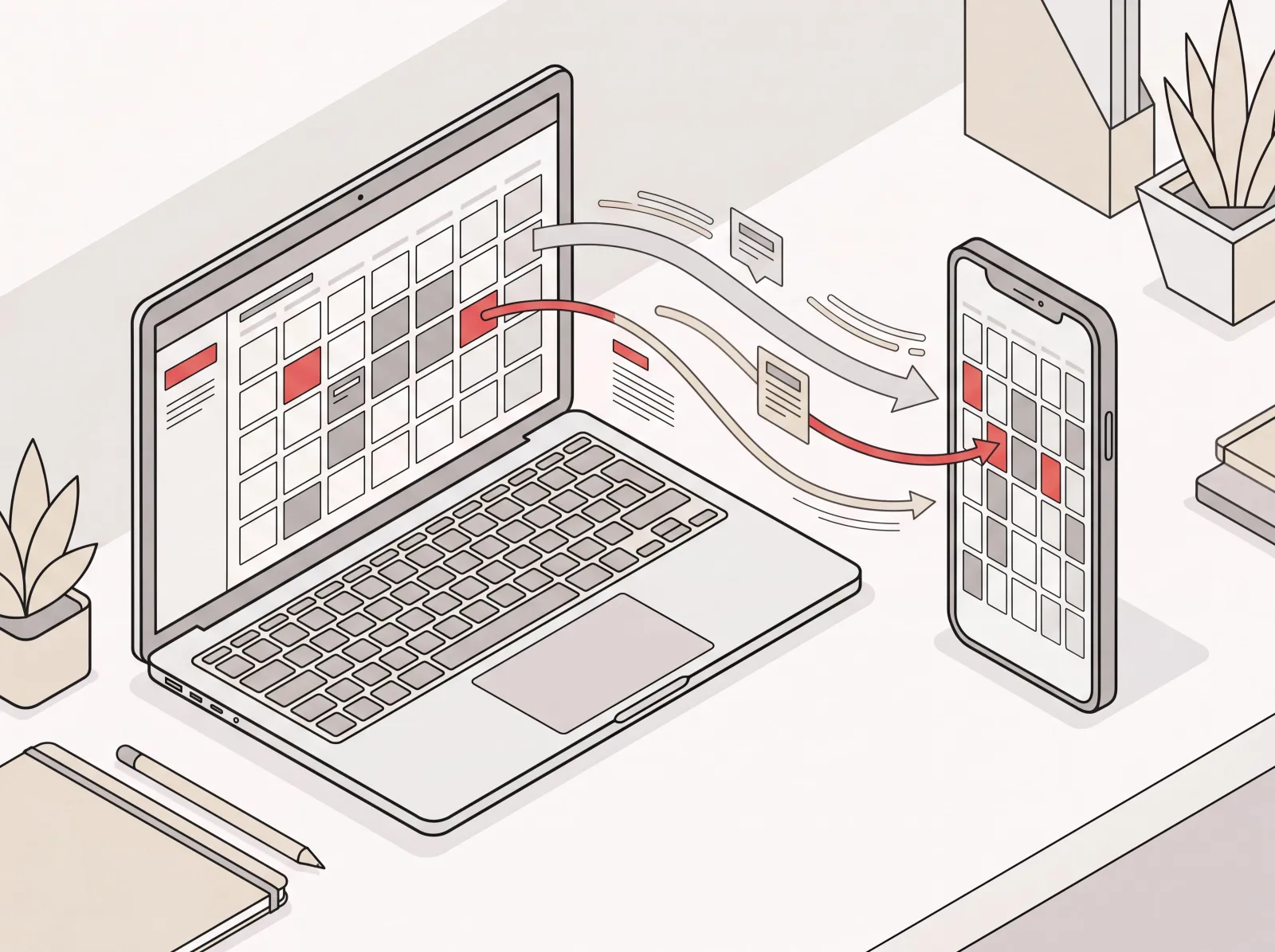
If your work calendar lives in Outlook but your day actually runs off your iPhone, you need the two talking. A meeting you add on your laptop should be on your phone before you’ve shut the lid. That’s really the whole point.
I’m Nir Sabato, co-founder of Catch, the AI Executive Assistant that handles scheduling, email, and calendar work for busy executives. A lot of my time is spent in that messy gap between calendars and the people trying to keep them straight, and I’ve watched more than a few leaders lose a morning to a meeting their phone simply never showed them. This guide walks you through how to sync Outlook calendar with iPhone the right way, so that doesn’t happen to you.
There are three reliable methods. I’ll cover all three, tell you which one I’d pick, and show you what to do when events stop showing up.
The Fastest Way to Sync Outlook Calendar With iPhone
The quickest way to sync Outlook calendar with iPhone is to install the Outlook app from the App Store and sign in. Your calendar shows up in seconds, no settings menus to dig through.
If you just want your Outlook events on your phone and you don’t mind using Microsoft’s own app, this is the path. Here’s how:
- Open the App Store on your iPhone and search for Microsoft Outlook.
- Tap Get to install it, then open the app.
- Enter your work email address and tap Add Account.
- Sign in with your Outlook or Microsoft 365 password. If your company uses multi-factor authentication, approve the prompt.
- Tap the calendar icon at the bottom of the app. Your Outlook calendar is already there.
That’s it. Anything you create in the app syncs straight back to Outlook on your other devices, and whatever you add on the laptop shows up here too. The catch is that your events live inside the Outlook app, not your iPhone’s built-in Calendar app. So if you’d rather use Apple’s calendar, keep reading.
How to Add Your Outlook Calendar to the iPhone Calendar App
To get Outlook events inside the native iPhone Calendar app, add your Outlook account through Settings > Calendar > Accounts > Add Account, then turn on the Calendars toggle.
This is the one most professionals are really after. It drops your Outlook meetings right next to everything else in Apple’s Calendar app, so you get one view for your whole life instead of hopping between two apps all day. (Running Google too? Here’s how to sync Google Calendar across your devices the same way.)
Step-by-Step Setup
- Open the Settings app on your iPhone.
- Scroll down and tap Calendar, then tap Accounts. (On newer iOS versions, this lives under Settings > Apps > Calendar > Calendar Accounts instead.)
- Tap Add Account.
- Choose Outlook.com if you’re on a personal Outlook account, or Microsoft Exchange if you’re on a work or Microsoft 365 account. (When in doubt, work email = Microsoft Exchange.)
- Enter your email address and tap Next, then sign in and approve any verification prompt.
- On the next screen, make sure the Calendars toggle is switched on. You can leave Mail, Contacts, and Reminders on or off depending on what you want synced.
- Tap Save.
Open the iPhone Calendar app and your Outlook events will be sitting there. New meetings flow both ways on their own. Add one on your phone and it lands in Outlook, and the reverse holds too. This is the cleanest answer to how to sync iPhone calendar with Outlook in both directions, since the connection is two-way out of the box.
Choosing Between Outlook.com and Microsoft Exchange
The account type you pick does matter:
- Microsoft Exchange is for company accounts (Microsoft 365 and on-premise Exchange). It carries calendar, contacts, and email, and it’s the usual choice for work.
- Outlook.com is for personal @outlook.com, @hotmail.com, or @live.com addresses.
Pick the wrong one and the account just won’t connect. No harm done. Remove it and try again with the other option.
How to Sync a Shared or Published Outlook Calendar
To sync a colleague’s or team Outlook calendar to your iPhone, publish it from Outlook on the web as an ICS link, then subscribe to that link on your iPhone under Settings > Calendar > Accounts > Add Account > Other.
Sometimes it’s not your own calendar you’re after. You want someone else’s, or a shared team calendar. Here’s how to pull a published Outlook calendar onto your phone:
- In Outlook on the web, go to Settings > Calendar > Shared calendars.
- Under Publish a calendar, choose the calendar you want and set permissions to show full details.
- Copy the ICS link it generates.
- On your iPhone, open Settings > Calendar > Accounts > Add Account > Other.
- Tap Add Subscribed Calendar, paste the ICS link, and tap Next, then Save.
A subscribed calendar like this is read-only. You’ll see the events but can’t edit them from your phone, which is usually exactly what you want when it’s a colleague’s schedule. (If it’s a Google calendar you’re trying to add, the steps to sync Google Calendar with Apple Calendar work much the same way.)
Outlook Calendar Not Syncing With iPhone? Here’s the Fix
When your Outlook calendar stops syncing with your iPhone, the cause is almost always a paused account, a calendar toggle that got switched off, or an app that’s behind a version or two. Each fix takes under a minute.
Work through these in order:
- Check the Calendars toggle. Go to Settings > Calendar > Accounts, tap your Outlook account, and make sure Calendars is switched on. This is the single most common culprit, by a wide margin.
- Refresh the fetch settings. In Settings > Calendar > Accounts > Fetch New Data, turn Push on, or set Fetch to every 15 minutes so updates land quickly.
- Confirm your default calendar. In Settings > Calendar > Default Calendar, set it to your Outlook calendar so new events save to the right place.
- Update your apps. Get both iOS and the Outlook app on the latest version. Older builds sometimes drop the connection after a security update.
- Check your internet connection. Calendar updates need a live connection. If your Wi-Fi is flaky, switch to cellular and try again.
- Remove and re-add the account. If nothing else works, delete the Outlook account from Settings > Calendar > Accounts and add it back using the steps above. That clears most of the stubborn cases.
When Events Show Up Late or Out of Order
If events do appear but feel delayed, it’s almost always the fetch interval. Push delivers changes as they happen; Fetch only checks on a schedule. Switching your account to Push under Fetch New Data keeps both sides current. While you’re at it, double-check your iPhone’s time zone in Settings > General > Date & Time. A mismatched time zone is a classic reason a meeting shows up at the wrong hour.
Keeping Your Calendar in Sync Is Only Half the Battle
Syncing fixes the plumbing. Your meetings now show up everywhere. But a synced calendar still won’t schedule itself, sort out its own conflicts, or chase down the three people you need in a room at the same time.
That’s the work I built Catch to take off your plate. Once your Outlook account is connected, Catch watches your calendar across every device and acts on what it sees. A double-booking quietly forming next Tuesday? Catch reaches out to the other person and reschedules it, end to end, before you’ve even noticed. Need a meeting set up? Tell Catch by text, Slack, or voice, and it checks your availability, coordinates with the other side, and sends the invite.
Since Catch connects straight to your Outlook calendar as a full Outlook AI assistant, it works no matter which sync method you went with above. Whether your events live in the Outlook app or Apple’s Calendar app, Catch reads the same source of truth and keeps your day moving. It also handles the parts a calendar simply can’t: triaging your inbox, sending that follow-up email, even calling a restaurant to lock in a reservation. That’s the gap between a calendar that displays your day and an assistant that actually runs it.
Which Sync Method Should You Choose?
Here’s the quick decision guide:
- You live in Microsoft’s world → Install the Outlook app. Fastest setup, fewest steps.
- You want one unified calendar on your iPhone → Add your account through Settings as a Microsoft Exchange account. Two-way sync, in Apple’s native Calendar app.
- You only need to view someone else’s calendar → Subscribe to a published ICS link. Read-only and tidy.
- You want your calendar to actually manage itself → Connect Catch and let it run scheduling, resolve conflicts, and handle your inbox across all your devices.
For most professionals, the Microsoft Exchange route through Settings is the sweet spot. It’s reliable, it’s two-way, and it keeps everything in one place. Set it up once and you’ll rarely think about it again.
Frequently Asked Questions
How do I sync my Outlook calendar with my iPhone?
Open Settings > Calendar > Accounts > Add Account, choose Microsoft Exchange for a work account or Outlook.com for a personal one, sign in, and switch the Calendars toggle on. Your Outlook events then appear in the iPhone Calendar app and sync both ways.
Why is my Outlook calendar not syncing with my iPhone?
Usually it’s a Calendars toggle that got switched off, an outdated Outlook or iOS version, or a fetch setting that isn’t on Push. Check Settings > Calendar > Accounts first, then update your apps, and if it still won’t sync, remove the account and add it back.
Does syncing Outlook with iPhone work both ways?
Yes. When you add your Outlook account as a Microsoft Exchange account in iPhone Settings, the sync is two-way - events you create on your phone appear in Outlook, and events added in Outlook appear on your phone. Subscribed ICS calendars are the exception and remain read-only.
Should I use the Outlook app or the iPhone Calendar app?
Go with the Outlook app if you want the fastest setup and like Microsoft’s interface. Go with the iPhone Calendar app if you’d rather see all your calendars in one native view. Both keep your Outlook events current, so it really comes down to which app you’d rather open.
How do I sync my iPhone calendar with Outlook instead?
The same Microsoft Exchange connection handles both directions. Once your Outlook account is added in Settings with the Calendars toggle on, any event you create in the iPhone Calendar app and save to your Outlook account automatically appears in Outlook on every device.
Can I sync a shared or team Outlook calendar to my iPhone?
Yes. Publish the calendar from Outlook on the web to get an ICS link, then on your iPhone go to Settings > Calendar > Accounts > Add Account > Other > Add Subscribed Calendar and paste the link. The shared calendar appears as a read-only view.
Why do my Outlook events show up at the wrong time on my iPhone?
This is usually a time zone mismatch. Check Settings > General > Date & Time on your iPhone and make sure the time zone matches your actual location, or enable Set Automatically. Confirm the event’s time zone in Outlook as well.
How long does it take for Outlook events to sync to my iPhone?
With Push enabled, changes appear within moments. If you’ve set your account to Fetch instead, updates arrive on a schedule - every 15, 30, or 60 minutes. For the quickest updates, set the account to Push under Settings > Calendar > Accounts > Fetch New Data.
Will syncing Outlook delete any of my existing iPhone events?
No. Adding an Outlook account just adds a separate calendar to your iPhone. It doesn’t touch or overwrite events already sitting in your other calendars. You can show or hide each calendar independently in the Calendar app.
Can an AI assistant manage my Outlook calendar after it’s synced?
Yes. Catch connects directly to your Outlook calendar and proactively manages it - resolving scheduling conflicts, booking new meetings, and handling your inbox across all your devices. It works regardless of which sync method you used to get Outlook onto your iPhone.
Syncing your Outlook calendar with your iPhone takes a few minutes and spares you from missing meetings for good. Pick the method that fits how you work, set it up once, and let the two sides keep each other current. And when you’re ready to stop managing your calendar and start having it managed for you, that’s where Catch comes in.
Keep reading
Related posts

Online Scheduling Tools: What Each Type Actually Does
There are five distinct kinds of online scheduling tool, built for five different problems. This guide defines each category, what it was designed to solve, and who it fits.
What Is Block Scheduling? How It Works and Why Blocks Collapse
What block scheduling is, how it differs from time blocking and task batching, how to build one that works, and the real reason so many blocks collapse by mid-morning.
Scheduling Software That Integrates With Outlook: What to Look For
Every scheduling tool claims Outlook support, and they mean very different things by it. Here is how to test integration depth before you buy, plus the failure points that show up in week three.