AI Assistant for Microsoft Teams Users: Delegate Your Admin
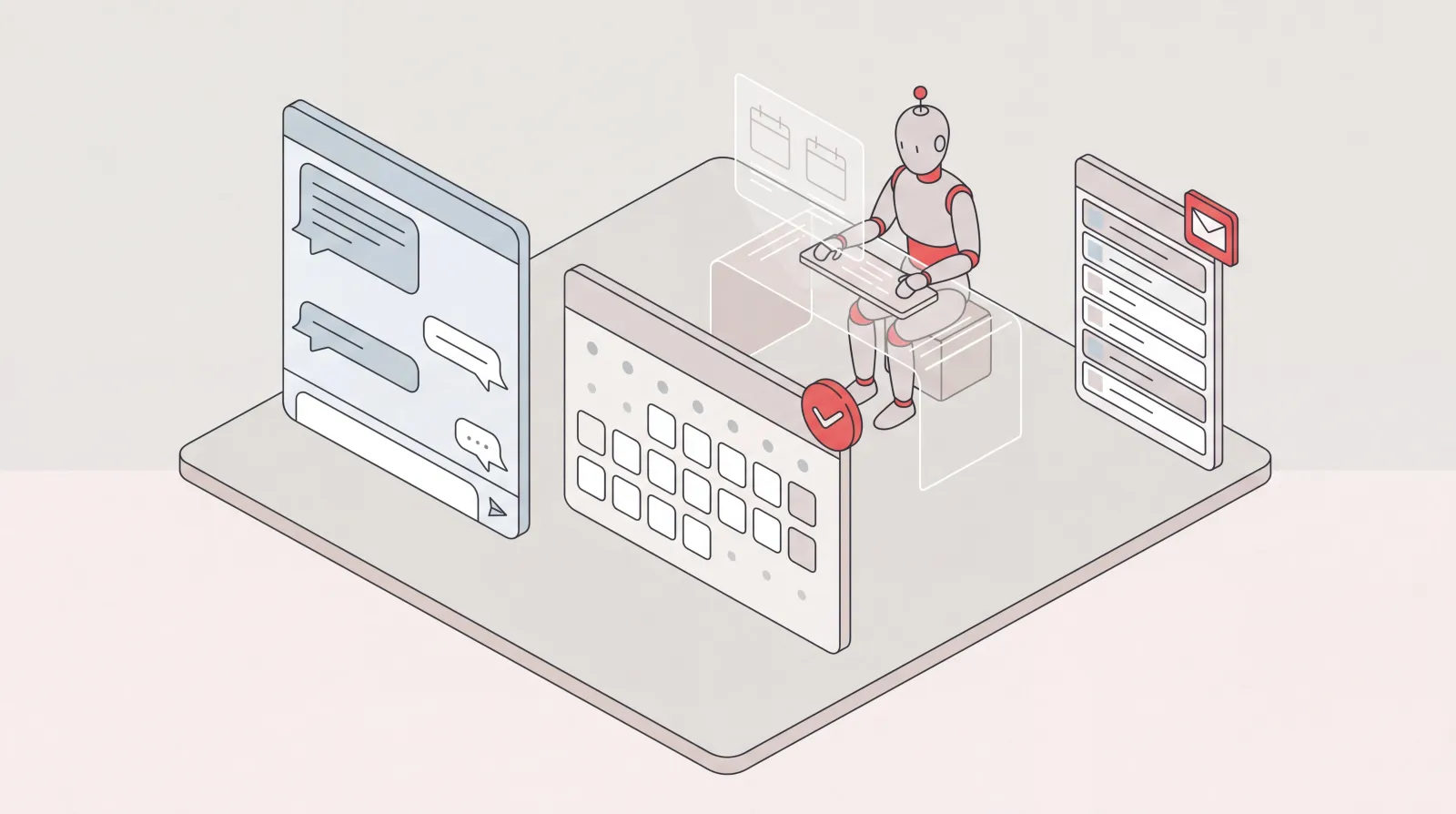
Catch is an AI assistant for executives who run on Microsoft Teams and Outlook. It connects to your Outlook email and calendar and handles scheduling, inbox, briefings, and bookings end to end.
On this page
- Microsoft Teams Is Where Your Day Happens. The Admin Still Lands on You.
- What an AI Assistant for a Microsoft Teams Company Should Actually Do
- What This Looks Like in Practice
- Scheduling That Ends With a Meeting on the Calendar
- Your Inbox, Reported Back to You
- Working a Draft in Slack or a Text, Not in Your Mailbox
- The Briefing Before You Join
- Bookings and Real Calls
- Business Travel, Booked End to End
- Who This Is For
- Getting Connected
- Security
- Frequently Asked Questions
- Get Started with Catch
Microsoft Teams Is Where Your Day Happens. The Admin Still Lands on You.
If your company runs on Microsoft 365, most of your day happens in Teams. Chat, channels, calls, the meeting that starts in four minutes. It’s all in one window, wired into the Outlook calendar and inbox sitting behind it. Microsoft spent years turning that window into the place work gets coordinated, and for most mid-market companies, it worked.
Coordinating is not the same as doing. Teams is very good at carrying the request. Someone types “can we push Thursday to next week?” into a chat, and now you know about it. Moving the meeting, emailing the two people who weren’t in that thread, checking whether next week is even open: that part still lands on you, in a different app, squeezed between two other meetings.
I’m Nir Sabato, co-founder of Catch. We built Catch so an executive can hand that work off the moment it shows up, and have it actually get done.
What an AI Assistant for a Microsoft Teams Company Should Actually Do
Catch is an AI executive assistant that connects to your Outlook email and calendar and handles the admin work end to end: scheduling, your inbox, reminders and flags on what needs you, briefings before meetings, bookings, and real phone calls placed on your behalf. It isn’t an app that lives inside Teams. You reach it from email, text message, iMessage, Slack, or by phone, and it works on the Outlook calendar and inbox behind everything happening in Teams.
The distinction worth caring about is between a tool that helps you do the work and an assistant you give the work to. Catch doesn’t hand you a suggestion and then wait. It checks the details, does the thing (books the meeting, sends the reply, places the call), and comes back to tell you it’s handled. Early on it checks with you before acting, the way a new hire would. As it picks up your priorities, your key relationships, and how you like things done, it starts handling more on its own.
What This Looks Like in Practice
Scheduling That Ends With a Meeting on the Calendar
You: Find 45 minutes with John and the RevOps team before Friday, not before 10am.
Catch: Thursday 10:30 works for everyone except John, who has a hard stop. Friday 11:00 is clear for all four. Booking Friday 11:00 and sending the invite.
You get a meeting. Not a list of options, and not a link to pass around. When someone sends you their own booking link, Catch looks at the slots and books one, weighing your real availability against how urgent the request is. When two things collide on your calendar, Catch contacts the other party, moves one, and tells you it’s sorted.
Your Inbox, Reported Back to You
Catch: Two things need you today. The reseller contract came back with a changed payment term, and the vendor you asked me to chase in June finally replied with a quote 12% over the last one.
Catch reads and prioritizes your Outlook inbox in the background and surfaces only what genuinely warrants your attention. That judgment is really the point. It weighs importance against what it knows about your priorities and the people who matter to you, rather than running a rule about senders or keywords. Threads that have gone quiet get the same treatment: Catch works out which ones deserve a nudge, then sends it.
Working a Draft in Slack or a Text, Not in Your Mailbox
Here’s where a chat channel earns its place. A draft sitting in your mailbox is a dead end. You can accept it, delete it, or rewrite it yourself. It can’t take feedback.
You: Reply to Mark about the renewal. Yes to the extension, but I want the security review scheduled first.
Catch Drafted. Confirming the 12-month extension, and asking to put the security review on the calendar before signature. Want me to propose dates in it?
You Yes, and soften the deadline line. He’s been good to us.
Catch: Reworded, dates proposed for the week of the 25th. Sending now.
Three messages, and the email is out. What Catch is matching isn’t your writing style in the abstract. It’s what you actually meant. When a reply hinges on a decision it doesn’t have, it comes back to you with the context you need to make it, then acts.
The Briefing Before You Join
Catch: Your 2pm with the procurement team starts in 20 minutes. You owed them revised pricing from the last call, and I don’t see it sent. Their last email is about the implementation timeline.
Catch pulls what you’ll need from your connected tools ahead of a meeting and flags the prep you haven’t done. If your team uses a note-taker, Catch works with popular ones and can pull context from them.
Bookings and Real Calls
You: Book a table for six near the office Thursday at 7, and get me a late checkout at the hotel next week.
Catch: On it.
Catch places real outbound calls on your behalf. The restaurant, the hotel front desk, the appointment that only happens by phone. Then it reports the result back wherever you reached it, in Slack, email, or a text message. It identifies itself as an AI agent on the line. Calls are included, with no per-call fees.
Business Travel, Booked End to End
Ask for a trip, or let Catch spot it first from a conference receipt in your inbox or a meeting in another city on your calendar. It books the flight, the hotel, and the ground transport itself, applying the preferences it has learned from you. It keeps managing the trip afterwards too, rebooking if a better rate appears and the rate is flexible, sorting the last-mile details, rearranging things when the trip moves.
Who This Is For
- Executives at Microsoft 365 companies whose entire day runs through Teams and Outlook, and who are quietly absorbing the coordination work themselves.
- CEOs, VPs of Sales, and Operations leaders at companies of roughly 20 to 300 people with a genuinely heavy admin load.
- Founders who want scheduling, email, and bookings handled without hiring and managing someone to do it.
- Leaders who already tried delegating to a chat tool and got drafts and suggestions back instead of finished work.
Getting Connected
Setup is self-serve and takes under three minutes. You sign up, connect Outlook over OAuth (in some organizations this needs IT approval), and optionally connect the rest of your stack: HubSpot or Zoho, Asana or Notion, your note-taker. Beyond that, there’s nothing to configure. No workflow builder, no rules to define, no dashboard to learn. You message Catch from Slack, email, text message, or iMessage, or you call it, and it works.
Security
Catch is SOC 2 Type II certified and has passed CASA Tier 2 review as a Google-verified app. It verifies details before doing things on your behalf, and it acts only within the access you’ve granted.
Frequently Asked Questions
Do I need to switch away from Microsoft Teams?
No. Catch works alongside Teams, not instead of it. Your chats, channels, and meetings stay exactly where they are. Catch is something you message from Slack, email, text message, or iMessage, and it’s available around the clock, so a request at 6am gets picked up in seconds.
How does Catch connect to my Microsoft setup?
Through Outlook. You authorize Catch to your Outlook email and calendar over OAuth, which is what lets it read your inbox, send on your behalf, and manage invites. Some organizations require IT to approve that connection.
Is this an AI meeting assistant for Microsoft Teams that joins and takes notes?
No. Catch doesn’t join your Teams calls or transcribe them. It works around them: scheduling and rescheduling, briefing you beforehand, chasing whatever came out of them. If you use a note-taker, Catch can connect to popular ones and pull context from it.
Is this the same as the AI already built into Microsoft 365?
Catch isn’t a feature inside one application. It connects to your email and calendar and takes action across them end to end, and it reaches you in email, text message, iMessage, Slack, or by phone. You hand it a task and it carries it through, rather than waiting to be prompted step by step.
Will Catch do things without asking me?
Not at first. Early on Catch checks with you before it acts, and it won’t do anything you haven’t given it permission to do. As it learns your priorities and preferences from your connected data and your own feedback, it handles more independently, and it still comes to you when a decision is genuinely yours to make.
Does Catch actually book meetings, or just propose times?
It books them. It checks availability, coordinates with the other parties, sends the invite, and manages the participant list. When someone sends you an external scheduling link, Catch clicks through and books a slot that fits your week.
Can it make phone calls for me?
Yes. Catch places outbound calls on your behalf, for restaurants, hotels, and appointments, and you can call Catch yourself to talk through your day and hand off work. It doesn’t pick up your personal incoming calls, the same way a human executive assistant wouldn’t.
What does it cost?
A flat $99 per month, with a 10-day free trial. No credits, no usage tiers, no per-call fees. Voice is included.
Does Catch replace Asana, Notion, or my CRM?
No. It integrates with them. Catch closes tasks, adjusts deadlines, pulls briefs, and retrieves and updates CRM records in HubSpot and Zoho. You keep your stack; Catch operates across it.
Where do I message Catch?
From email, text message, iMessage, or Slack, or you can call it. It’s the same assistant with the same context in every one of them, so a conversation you start in one channel continues wherever you pick it up.
Get Started with Catch
Nothing about how your company uses Teams has to change. You keep the chats, the channels, and the meetings, and you gain somewhere to send the work that comes out of them. Connect Outlook, message Catch, and hand off the first thing on your list. Setup takes under three minutes, and the flat price is $99 a month.
Keep reading
Related posts
Notion and Google Calendar: Keep Plans and Calendar in Step
What connecting Notion and Google Calendar actually does, where it stops, and how Catch works across both — turning what you planned in Notion into booked time and moving it when things change.
Google Calendar AI Assistant: Delegation, Not Just Scheduling Links
What a Google Calendar AI assistant should actually do: read the context around a meeting, book and move things end to end, handle the back-and-forth, and confirm by email or phone.
Slack and Google Calendar: Run Your Calendar Without Leaving Slack
The native Slack and Google Calendar connection shows you your day but leaves the work to you. Catch acts on it, booking, moving, and confirming meetings end to end from a Slack message.