Notion and Google Calendar: Keep Plans and Calendar in Step
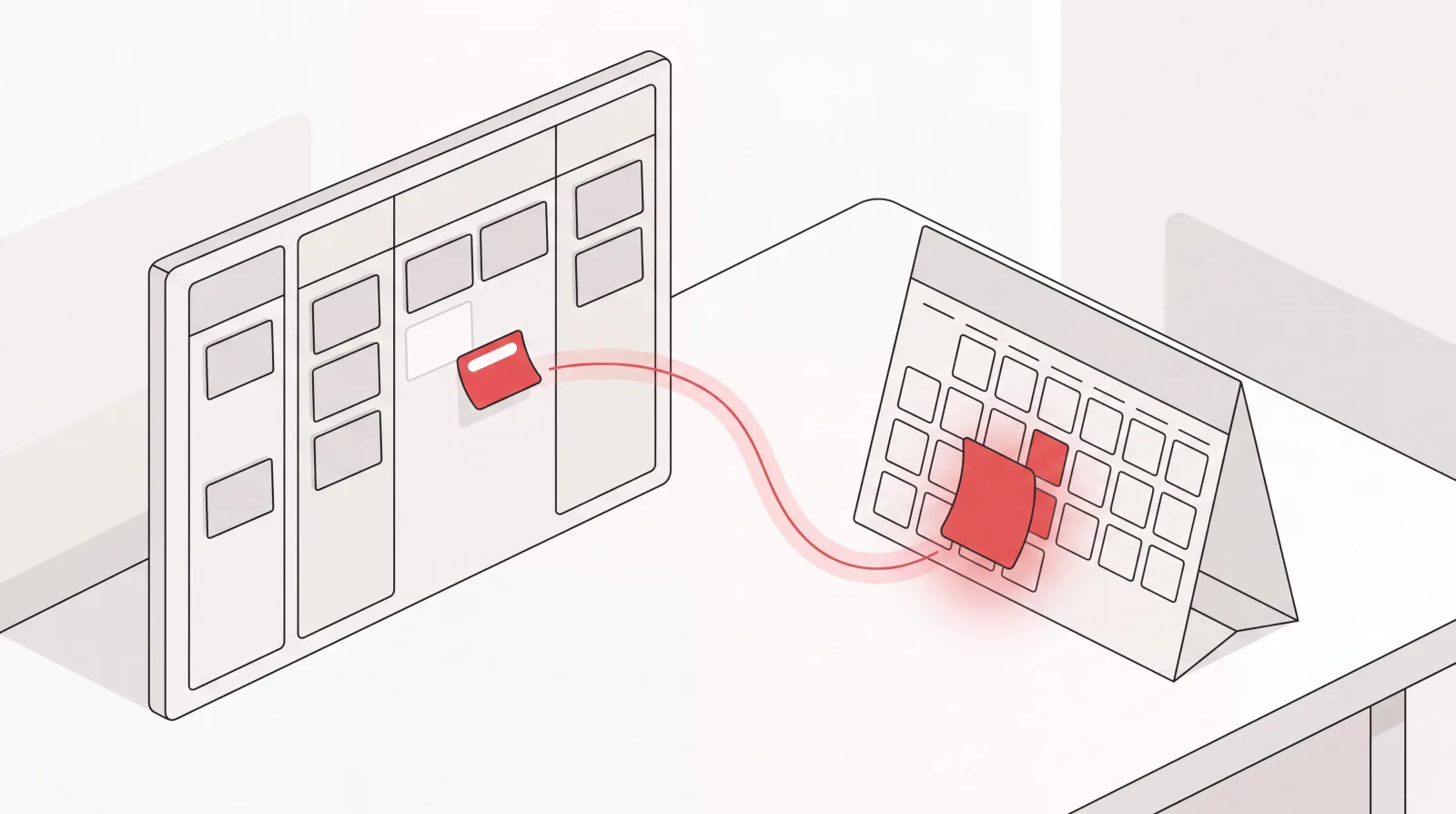
What connecting Notion and Google Calendar actually does, where it stops, and how Catch works across both — turning what you planned in Notion into booked time and moving it when things change.
On this page
- Where Notion and Google Calendar Each Fit
- What the Notion Google Calendar Integration Does, and Where It Stops
- What Catch Adds Across Notion and Google Calendar
- How Catch Works Across Both
- Turning a Plan Into Booked Time
- When Things Slip, the Calendar Moves
- Closing the Loop With the Other People
- Meeting Prep Pulled From Where You Keep It
- Reaching You Wherever You Already Are
- Who This Is For
- What Changes for You
- Security
- Frequently Asked Questions
- Get Started with Catch, Notion, and Google Calendar
Where Notion and Google Calendar Each Fit
If you run your work in Notion, you know why. Strategy, project pages, the notes from the last review, the dates you committed to: all sitting together. Not much else in the stack holds that much context in one view. Google Calendar is where the day actually happens. The invites. The availability your team checks before they ask you for twenty minutes.
Most executives end up trying to get those two views to agree with each other. That’s what a Notion Google Calendar setup is for. Notion Calendar sits alongside your Google Calendar accounts, so your events and your Notion work show up together instead of in two tabs. Useful. If you haven’t connected them, do it.
The connection is worth having. It’s also worth knowing exactly where it stops, because that gap is where all the manual coordination still sits.
What the Notion Google Calendar Integration Does, and Where It Stops
Connecting Notion and Google Calendar solves a viewing problem. Your events show up next to your work, and you stop reconciling two lists in your head every time you plan a day.
What it won’t do is act. A date in Notion becomes visible. It doesn’t become a booked meeting with three other people on it. A project slips a week: the plan changes, the calendar doesn’t, and someone still has to open the invites, find times that work for everyone, send the updates. When a review needs the CFO and two department heads in the same room, no amount of viewing puts it on the calendar. Someone works through availability, proposes times, chases whoever didn’t reply, then rebooks when one of them cancels.
That someone is usually you. Or it’s one of the third-party sync tools people bolt on to push records back and forth. Those move data more thoroughly, but they still don’t do the scheduling, the rescheduling, or the chasing. Data moving between two systems isn’t the same as work getting done.
The practical answer to “how do I sync Notion with Google Calendar” is: connect them, and your views will stay in step. Who actually turns the plan into time on the calendar and keeps it accurate when things move? That’s a different question, and it’s the one worth answering.
What Catch Adds Across Notion and Google Calendar
Catch is an AI executive assistant that connects to both. It integrates with Notion, it integrates with Google Calendar, and it replaces neither. Your workspace stays as you built it. Your calendar stays where it is. Catch is the layer between them that takes action.
What matters is what it does with that access. On your Google Calendar it reads and writes: creating events, moving them, changing durations, adding and removing participants, accepting and declining invites. In Notion it works like an employee with access, closing tasks, changing deadlines, pulling the brief for a meeting that’s about to start. It learns you as it goes, too. Your priorities. Which relationships matter. How long you like your meetings to run, the days you’re in the office, the buffer you need between calls.
Catch applies judgment instead of running a rulebook. There’s no workflow engine to configure, and nobody asks you to define what should happen when a date changes. It weighs what it knows about you, then decides what to handle alone, what to check with you first, and what isn’t worth surfacing at all. Early on it checks in more. As it learns how you work, it asks less.
How Catch Works Across Both
Turning a Plan Into Booked Time
Tell Catch what needs to happen, over Slack, text, iMessage, or on a call, and it books it. “The Q4 planning session needs to happen the week of the 14th with John, Mark, and the finance lead. Ninety minutes, mornings only.” Catch checks your Google Calendar, coordinates with everyone, picks a time that genuinely works, sends the invite. You never opened a scheduling tab or wrote a single “does Tuesday work for you?” email.
When Things Slip, the Calendar Moves
Plans change more often than calendars do, and the mess collects in the gap between them. Move a date and Catch moves the meetings attached to it: new times proposed, invites updated, participants notified through the calendar the way they’d expect. When two things collide on your Google Calendar, Catch doesn’t just flag the overlap. It reaches out to the other party, proposes a time that fits your real availability, and rebooks it.
Closing the Loop With the Other People
Most of the work in keeping a plan and a calendar aligned happens in neither tool. It’s in the messages to the people involved. Catch takes that side: emailing participants about the change, chasing the one who hasn’t confirmed, and, when something only ever gets resolved on the phone, placing a real outbound call on your behalf. It identifies itself as your AI assistant when it calls. Voice is included in the price, with no per-call fees.
Meeting Prep Pulled From Where You Keep It
Before a meeting on your calendar, Catch pulls the brief from your connected tools, Notion included, along with the relevant email history and whatever you said you’d handle beforehand. If something’s missing, you hear about it in advance rather than at 9:58. You walk in prepared without having gone looking.
Reaching You Wherever You Already Are
None of this needs you to be in Notion or in your calendar. Message Catch in Slack, send a text or an iMessage, leave a voice note, or call and talk it through. Catch keeps working across both systems in the background, and it comes to you when something genuinely needs your attention.
Who This Is For
- Executives who run planning in Notion and have quietly become the person who converts every plan into calendar invites.
- CEOs, VPs, and operations leaders at US companies of 20 - 300 employees carrying a heavy meeting load on Google Workspace.
- Founders who already connected the two tools and then found they had a tidier view of the same amount of manual work.
- Anyone weighing up an executive assistant who wants the coordination handled without another system to run.
What Changes for You
- Before: A date changes in the plan and you reschedule three meetings by hand. After: Catch moves them and tells the participants.
- Before: You work through four calendars looking for ninety minutes. After: Catch coordinates it and sends the invite.
- Before: You open Notion to remember what a meeting is about, five minutes before it starts. After: The brief is waiting.
- Before: Two people haven’t confirmed and you’re the one following up. After: Catch chases them and reports back.
- Before: The plan and the calendar drift apart all week. After: They stay in step, because someone is actually doing the work.
Security
Catch is SOC 2 Type II certified and has passed CASA Tier 2 review as a Google Verified App. Your IT team will ask about this before you connect a calendar and a workspace, so it’s worth having the answer ready before the question lands.
Frequently Asked Questions
Do I need to stop using Notion or Google Calendar?
No. Catch works on top of both. Your Notion workspace stays exactly as you built it and your calendar stays where it is. Catch connects to them and does the work neither tool was built to do on its own.
Does Catch replace Notion?
No. Catch isn’t a project or task management tool and doesn’t try to be one. It integrates with Notion and Asana instead of asking you to move off them.
Can Catch keep Notion and Google Calendar in sync?
Catch isn’t a sync utility. If what you want is records mirrored between two databases, that’s a different kind of tool. What Catch does is work across both: turning what’s planned into booked time on your calendar, updating it when things move, and handling the coordination with everyone involved.
How does Catch connect to my Google Calendar?
You connect it during setup, and Catch gets read and write access to your primary calendar plus any calendars shared with it. Same connect-your-calendar mechanism standard integrations use.
How does Catch connect to Notion?
You connect it as one of your apps after signup. From there Catch can close tasks, change deadlines, and pull briefs for upcoming meetings, working like an employee with access to your workspace.
How long does setup take?
Signup is self-serve and takes under three minutes. Connect Gmail or Outlook, grant permissions, then add other apps like Notion and Slack. Nothing to configure, no workflows to build.
Will Catch act without asking me?
It builds up to that. Early on, Catch checks with you before acting on your behalf. As it learns your priorities and how you like things handled, it takes on more alone, and when a situation genuinely needs your call it comes to you with the context you need to decide.
Does Catch answer my phone?
No. Catch talks with you on the phone and places outbound calls on your behalf, confirming a booking or sorting out a time with a vendor. It doesn’t pick up your incoming calls, the same way a human assistant wouldn’t.
How much does it cost?
A flat $99 per month. No credits, no usage tiers, no per-call fees. Voice calls are included, and there’s a 10-day free trial.
Which other tools does Catch work with?
Gmail and Outlook, Google Calendar and Outlook Calendar, Slack, WhatsApp, iMessage, phone, HubSpot, Zoho, Asana, Notion, and popular meeting notetakers.
Get Started with Catch, Notion, and Google Calendar
Nothing about how you work has to change. Keep planning in Notion, keep your calendar in Google, keep the connection between them if you’ve set it up. Catch adds the part neither tool covers: booking the time your plan implies, moving it when the plan moves, and handling the back-and-forth with everyone involved. Connect your email and calendar in under three minutes, add Notion, start a free trial. Get Started today.
Keep reading
Related posts
AI Assistant for Microsoft Teams Users: Delegate Your Admin
Catch is an AI assistant for executives who run on Microsoft Teams and Outlook. It connects to your Outlook email and calendar and handles scheduling, inbox, briefings, and bookings end to end.
Google Calendar AI Assistant: Delegation, Not Just Scheduling Links
What a Google Calendar AI assistant should actually do: read the context around a meeting, book and move things end to end, handle the back-and-forth, and confirm by email or phone.
Slack and Google Calendar: Run Your Calendar Without Leaving Slack
The native Slack and Google Calendar connection shows you your day but leaves the work to you. Catch acts on it, booking, moving, and confirming meetings end to end from a Slack message.